At a Glance
- Enter the wrong login password three times and macOS offers built-in reset tools.
- An Apple ID linked to the account, a second admin account, or Recovery Mode can all reset the password.
- FileVault users can restart via the power-button prompt or type in their recovery key.
- Why it matters: Regaining access takes minutes if you know the right sequence-and keeps your data intact.
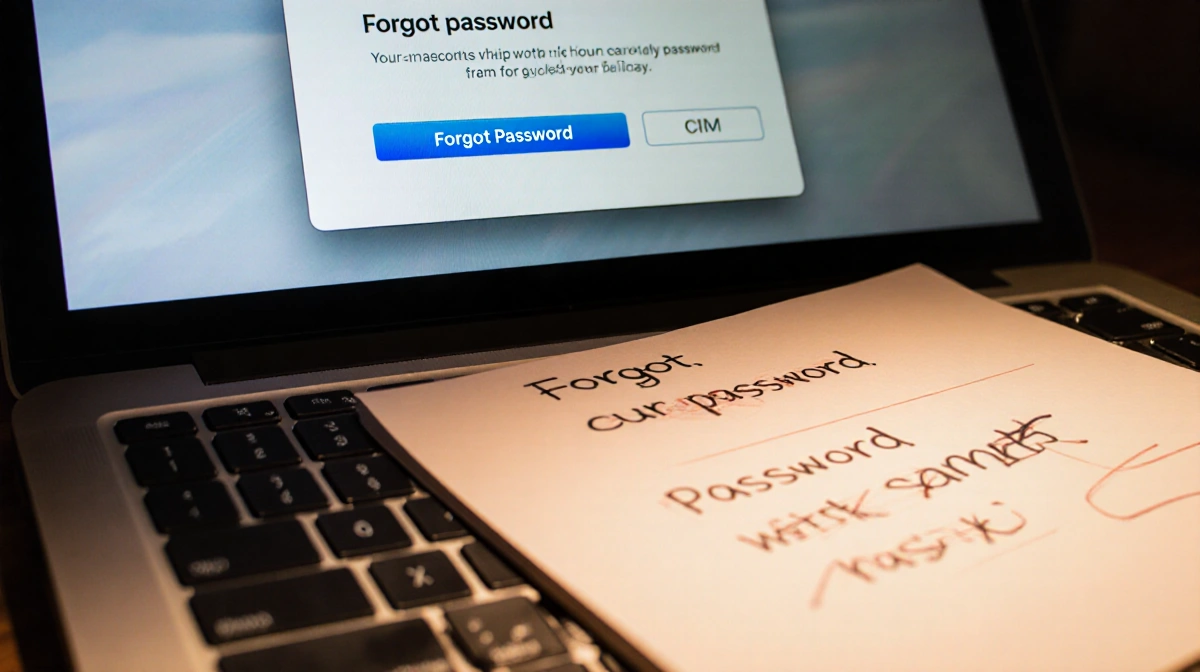
Forgotten your Mac login password? You’re not stuck. macOS includes several recovery paths that let you reset the password without losing files. Sophia A. Reynolds at News Of Losangeles details each method, from Apple ID tricks to Terminal commands in Recovery Mode.
Check the Basics First
Before diving into resets:
- Verify you’re typing the Mac login password, not the Apple ID password.
- Confirm Caps Lock is off and the keyboard input source matches your language.
- Click the question-mark icon on the login screen to reveal any password hint you set.
- Ensure the correct user account is selected if multiple people use the machine.
If these quick checks don’t help, move to the recovery options below.
Use Your Apple ID to Reset
Apple’s simplest fix works when your Apple ID is linked to the local user account:
- Enter the wrong password three times.
- A prompt asks if you want to restart and show recovery options; click Restart.
- After reboot, sign in with the same Apple ID tied to the account.
- Pick the user whose password you forgot and type a new password.
Some Macs skip the restart and instead display an immediate “Reset using Apple ID” button. Others show a FileVault recovery key field if you created one during setup. If the screen reads “Your account is locked. Try again in [time]”, wait out the timer, reboot, and repeat the steps.
Borrow Another Admin Account

Sharing the Mac with family or coworkers? Any admin-level account can reset another user’s password:
- Log in to the admin account.
- Open System Settings > Users & Groups.
- Click the lock icon and enter the admin credentials.
- Highlight the locked user and click Reset Password.
- Save the new password somewhere safe.
The first person who set up the Mac usually has admin rights; check the Users & Groups list to confirm which accounts hold that privilege.
Recovery Mode When You’re Stuck
No Apple ID link and no second admin? Recovery Mode is the next stop.
Intel Macs
- Shut the Mac down completely.
- Hold Command+R and press the power button.
- Keep holding until the Apple logo and a progress bar appear.
### M1 Macs (MacBook Air, MacBook Pro, Mac mini)
- Power off.
- Press and hold the power button until Options appears.
- Click Options, then Recovery.
Once inside Recovery:
- Select Utilities > Terminal.
- Type resetpassword (one word, no quotes) and press Return.
- Quit Terminal; the Reset Password assistant opens.
- Follow prompts to authenticate with your Apple ID and set a new login password.
FileVault Users Have Extra Choices
FileVault encrypts the entire drive. If it’s on, you gain two additional reset routes:
Power-Button Prompt
Wait about 60 seconds on the login screen until a message tells you to press the power button to restart into Recovery. Approve the restart and use the Reset Password window that appears.
Recovery Key
After three failed login attempts, macOS asks for the 28-character recovery key you saved when FileVault was enabled. Type it exactly-uppercase letters and hyphens required.
Skip both and you can still open Terminal from the Recovery screen, type resetpassword, and launch the assistant manually.
If Nothing Works
When every password-reset path fails, the final option is to reinstall macOS via Recovery Mode. This keeps user data intact but replaces system files, effectively giving you a fresh login environment. Back up via Time Machine first if possible.
Security Note
Anyone with physical access to the Mac and knowledge of these steps can reset the password. To block unauthorized resets:
- Store the FileVault recovery key in a safe place.
- Do not link an Apple ID to the account if you prefer tighter control.
- Set a firmware password (Intel) or FileVault (M1/Intel) to add another barrier.
Viewing Saved Web Passwords
macOS does not display your login password for security reasons, but you can see saved website credentials:
macOS Sonoma or Earlier
- Open System Settings > Passwords.
- Authenticate with Touch ID or the current login password.
macOS Sequoia
- Launch the Passwords app and sign in.
- Click Details next to any entry to reveal usernames and passwords for websites, apps, or Wi-Fi networks.
Key Takeaways
- A linked Apple ID is the fastest reset route.
- A second admin account can rescue family members in seconds.
- Recovery Mode works on every Mac, Intel or M1.
- FileVault adds encryption but also supplies extra reset tools if you saved the recovery key.
- Keep the recovery key offline and consider a firmware password for stronger protection.