At a Glance
- iOS offers 24 built-in settings that speed up, secure and personalize your iPhone without buying new hardware
- Hidden features include turning the back of the phone into a button, live voicemail transcriptions and 5G battery fixes
- Adjustments take under a minute each and work on models from iPhone 11 through iPhone 15
Why it matters: These free tweaks extend device life, cut battery drain and tighten privacy in seconds.
If your iPhone stutters or sips battery faster than before, the problem is rarely age-it’s default bloat. News Of Losangeles tested two-dozen buried settings that restore speed, stretch battery life and shield personal data. Every fix lives inside iOS; no third-party apps or upgrades required.
Stop Apps From Tracking Your Exact Location
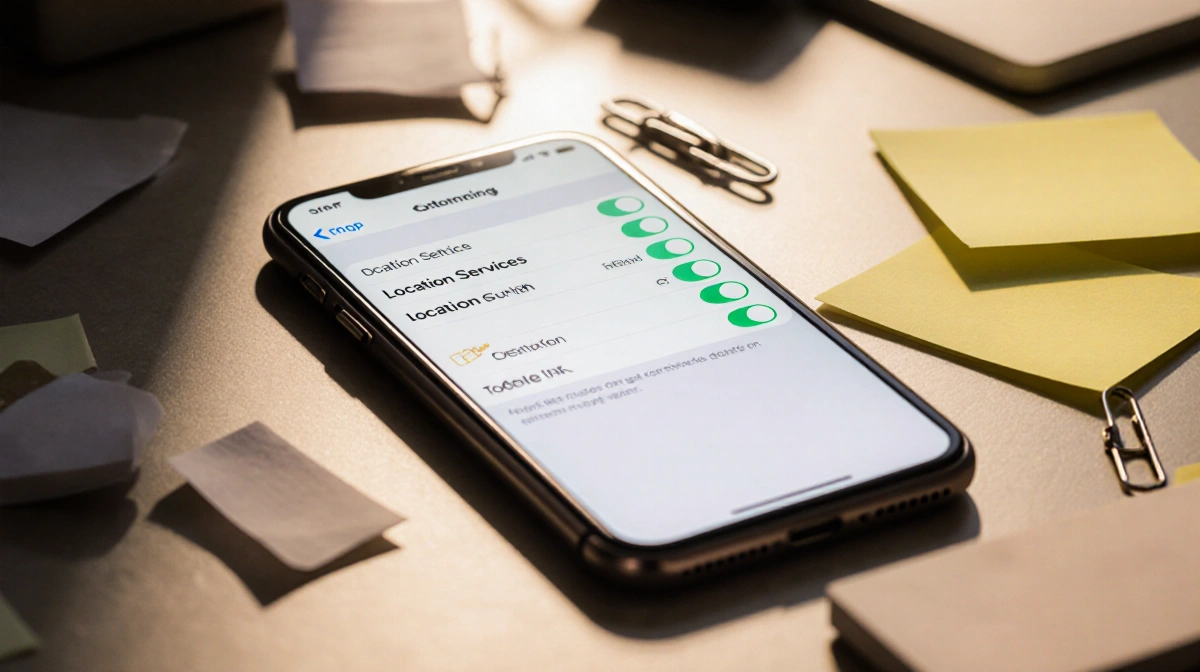
Instagram, Facebook and dozens of others request “Precise Location” even when a city-level fix is enough.
Steps:
- Settings → pick the app → Location → toggle off Precise Location
- Keep Precise on for DoorDash, Maps or ride shares that need door-to-door accuracy
With the switch off, the app sees only a multi-mile radius, not your street corner.
Turn the Back of Your iPhone Into a Secret Button
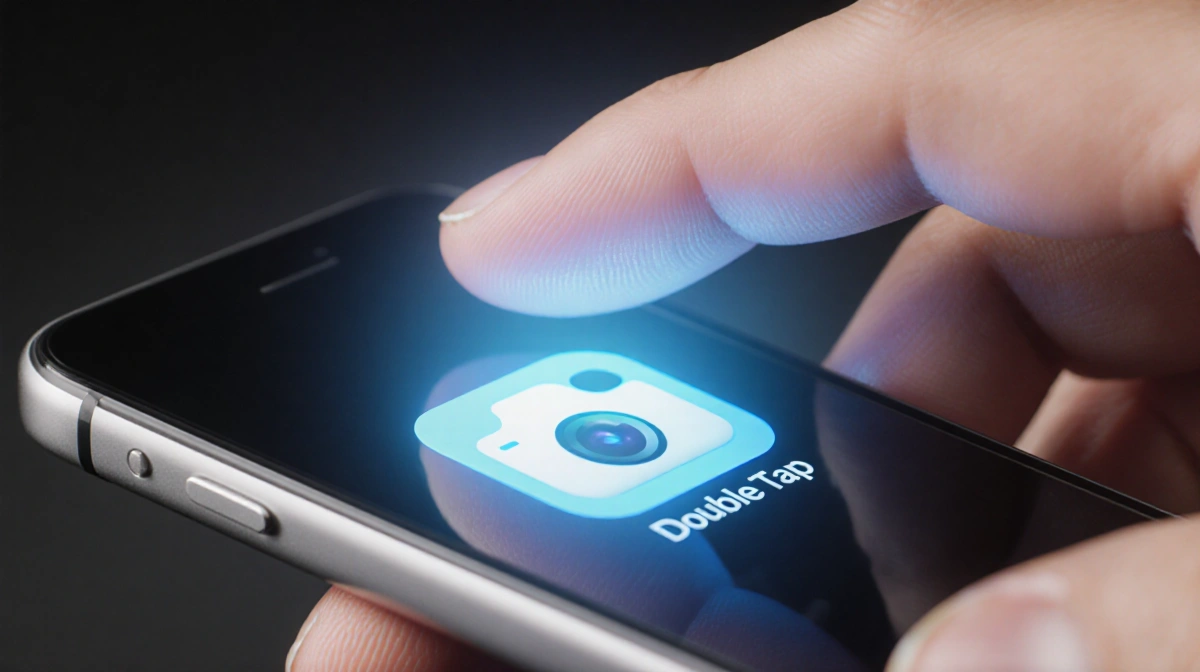
Double- or triple-tapping the rear glass can snap a photo, toggle low-power mode or launch any shortcut.
Steps: Settings → Accessibility → Touch → Back Tap → pick Double or Triple → choose an action
Older iPhones without the Action Button gain the same one-hand shortcut for free.
Cap Battery Charge to Extend Lifespan
Lithium-ion cells last longest when they avoid 100% for long stretches. iPhone 15 and newer let you set a ceiling.
Steps: Settings → Battery → Charging → drag the Charge Limit slider to 80%, 85%, 90% or 95%
The phone occasionally tops to 100% to recalibrate metering, but daily cycles stay below your cap.
Enable Live Voicemail for Real-Time Transcripts
iOS 17 prints a live transcript while a caller leaves voicemail so you can decide whether to pick up mid-message.
Steps: Settings → Phone → Live Voicemail → toggle on
No more guessing if the robocall is actually the pharmacy; read and choose to answer.
Restore Full-Screen Incoming Call Alerts
Banner alerts let you keep scrolling, but some users want the old full-screen interruption.
Steps: Settings → Phone → Incoming Calls → tap Full Screen
Swap back any time without a restart.
Switch Off 5G to Save Battery
Smart Data hops between LTE and 5G, yet 5G radios still nibble extra juice.
Steps: Settings → Cellular → Primary → Voice & Data → tap LTE
Pick 5G On instead if you want the fastest speed and don’t mind shorter uptime.
Fine-Tune How Much 5G Data Your iPhone Uses
Settings → Cellular → Primary → Data Mode shows three tiers:
- Allow More Data on 5G: HD FaceTime, automatic updates, high-def Apple TV+
- Standard: balanced use
- Low Data Mode: pauses background tasks
Check the default; carriers sometimes toggle the data-heavy option without asking.
Keep New Apps Out of the Home Screen
Downloads land on the Home Screen and in the App Library, creating clutter.
Steps: Settings → Home Screen & App Library → select App Library Only
New icons hide in the last page; swipe left to find them.
Unlock Face ID While Wearing a Mask
iOS 15.4+ added “Face ID With a Mask” that authenticates using the visible eye area.
Steps: Settings → Face ID & Passcode → toggle Face ID With a Mask
If you own an Apple Watch, you can instead enable Unlock with Apple Watch under the same menu.
Move Safari’s Address Bar Back to the Top
Apple moved the bar to the bottom for thumb reach; classicists can reverse it.
Steps: Settings → Safari → Tabs → tap Single Tab
No restart needed; the change applies to every Safari window instantly.
Allow Wallet, Control Center or Replies on the Lock Screen
Steps: Settings → Face ID & Passcode → enter passcode → scroll to Allow Access When Locked → toggle each switch
Pick only what you’re comfortable exposing without authentication.
Set Chrome, Outlook or Any App as Default
iOS now lets mail and browser links open in third-party apps.
Steps: Settings → pick the app → Default Browser App or Default Mail App → select it
Revert the same way if you miss Apple’s integration.
Show Full Notification Previews on the Lock Screen
Face ID models hide message text until unlocked; you can expose it.
Steps: Settings → Notifications → Show Previews → Always
Choose Never if you prefer the extra privacy layer.
Disable HDR Video for Easier Editing
HDR Dolby Vision clips look stunning but can break compatibility with older editors.
Steps: Settings → Camera → Record Video → toggle off HDR Video
All future recordings use standard dynamic range and smaller file sizes.
Use Auto-Switching Light/Dark Wallpapers
Built-in stills ship with paired light and dark versions that flip with system appearance.
Steps: Settings → Wallpaper → Add New Wallpaper → pick a wallpaper showing the half-black, half-white circle
Enable “Dark Appearance Dims Wallpaper” for seamless transitions.
Turn on Dark Mode to Stretch Battery
OLED models save power when pixels stay black.
Steps: Settings → Display & Brightness → tap Dark
Toggle from Control Center anytime; most third-party apps follow the system setting.
Filter Notifications With Focus Modes
Focus blocks non-urgent alerts while letting calls or Slack messages through.
Steps: Settings → Focus → pick a preset (Work, Sleep, Driving) or tap + to build your own
Schedule automation or enable Focus Status so contacts see you’re busy.
Resize System Text Instantly
Steps: Settings → Display & Brightness → Text Size → drag the slider
Toggle Bold Text just below for extra legibility without leaving the menu.
Add a Second Face ID Look
Alternate Appearance helps Face ID recognize you with glasses, hats or heavier beards.
Steps: Settings → Face ID & Passcode → Set Up An Alternate Appearance → scan your face again
The system keeps both profiles and updates them continuously.
Disable Auto-Brightness to Keep Screens Dim
Ambient sensors raise brightness in sunlight but can overshoot indoors.
Steps: Settings → Accessibility → Display & Text Size → scroll down → turn off Auto-Brightness
Manually set brightness in Control Center; your fixed level sticks until you change it.
Audit Privacy Permissions in One Place
Steps: Settings → Privacy & Security → scroll through categories (Location, Camera, Health) → revoke any overreach
Do this quarterly-apps add new data grabs with updates.
Customize Control Center Shortcuts
Steps: Settings → Control Center → tap + or – to add or remove tiles
Drag the three-line handle to reorder. Wallet, Low Power Mode and Dark Mode toggles are popular picks.
Access Control Center with a swipe-down from the top-right on Face ID models or swipe-up on home-button phones.
Bundle Non-Urgent Alerts Into a Scheduled Summary
Steps: Settings → Notifications → Scheduled Summary → choose apps and delivery times
Time-sensitive alerts (calls, Uber status) still arrive instantly; everything else lands in one tidy stack.
Swap Siri’s Voice or Accent
Steps: Settings → Siri & Search → Siri Voice → preview and pick any accent or gender-neutral option
The choice syncs across every device signed in to the same Apple ID.
Key Takeaways
- Each setting takes seconds, needs no Apple ID change and works on iOS 15 through 17
- Combine five or six tweaks-location limits, 5G caps, dark mode, battery charge cap and notification filters-to feel an older iPhone return to launch-day snappiness
- Revisit the list after every major iOS update; Apple sometimes re-enables defaulted options