At a Glance
- Microsoft ended Windows 10 security updates in October, pushing users to Windows 11
- Users can still enroll in a free Extended Security Updates program until October 2026
- Many users report shorter battery life and other issues after upgrading to Windows 11
- Why it matters: These quick fixes can restore performance and privacy for millions of users who felt forced to upgrade
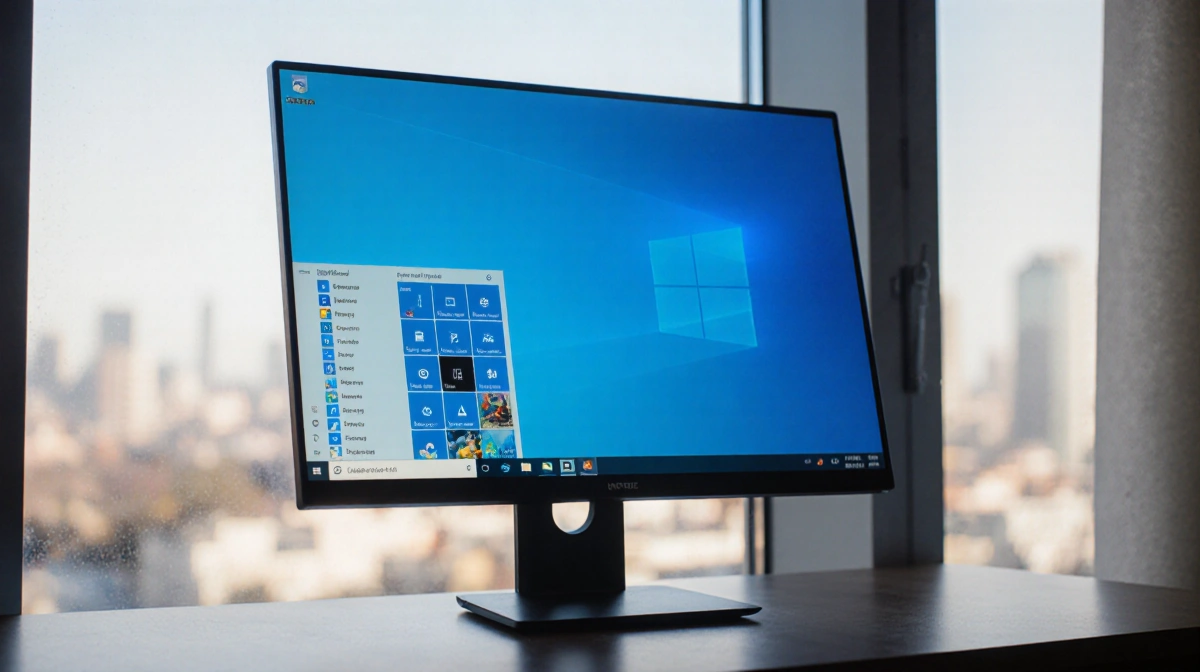
Microsoft’s campaign to move users from Windows 10 to Windows 11 has left many frustrated with performance issues and unwanted features. While the company ended security updates for Windows 10 in October, users can still enroll in a free Extended Security Updates program until October 2026. For those who’ve already made the switch to Windows 11, several adjustments can significantly improve the experience.
Remove Intrusive AI Features
Windows 11 comes loaded with Microsoft’s AI assistant, Copilot, integrated across multiple applications including Word, Excel, Notepad, and Edge. Users who find these features intrusive can easily remove them.
Uninstall Copilot:
- Search for Copilot from the Start menu
- Right-click on the app when it appears
- Select Uninstall
Eliminate Cloud Storage Headaches
OneDrive, Microsoft’s cloud service, causes syncing issues, data loss, and privacy concerns for many users. The constant file synchronization can drain battery life and system resources.
Remove OneDrive:
- Search for OneDrive from the Start menu
- Right-click and select Uninstall
Important: Back up all important documents, photos, and videos before uninstalling OneDrive to prevent data loss.
Declutter Your Start Menu
Windows 11’s Start menu comes preloaded with apps you probably never use. The constant recommendations can slow down navigation and waste system resources.
Disable recommendations:
- Go to Settings > Personalization > Start
- Turn off “Show recommendations for tips, shortcuts, new apps, and more”
Customize your apps:
- Click the Start menu icon
- Right-click on any pinned app
- Select “Unpin from Start” to remove unwanted apps
- Click “All apps” to find apps you want pinned
- Right-click and select “Pin to Start” for quick access
Optimize Your Taskbar
The taskbar should contain only your most-used applications. Default settings often load it with apps you rarely touch.
Customize taskbar apps:
- Click Start menu
- Select “All apps”
- Right-click on desired app
- Select “More” then “Pin to taskbar”
Stop Edge from Draining Resources
Microsoft Edge displays news feeds and sponsored ads that consume bandwidth and processing power. These features track your browsing habits to personalize content.
Disable Edge feed and widgets:
- Open Edge
- Click the plus sign to open a new tab
- Click the gear icon (Settings)
- Set “Show widgets” and “Show feed” to Off
Control Notification Overload
Websites and applications constantly bombard users with notifications, draining battery and interrupting workflow.
Manage notifications:
- Search for “Notifications” in the taskbar
- Toggle notifications off completely, or
- Scroll through individual apps and websites
- Toggle off specific sources
Speed Up Startup Times
Windows 11 launches numerous applications at startup, many of which aren’t necessary. These background processes significantly impact boot time and overall performance.
Disable startup apps:
- Open Task Manager (search from Start menu)
- Click “Startup apps” in the left column
- Review apps and their impact levels
- Right-click and disable unnecessary apps
Common apps to disable:
- Teams
- OneDrive (if you don’t use cloud storage)
- Gaming apps
- Music streaming services
Battery Life Recovery
Many users report shorter battery life after upgrading to Windows 11. This typically results from:
- Background AI processes
- Constant cloud synchronization
- Unnecessary startup applications
- Resource-heavy widgets and feeds
Following the optimization steps above should restore much of the lost battery performance.
Privacy Concerns Addressed
Windows 11’s default settings prioritize data collection over user privacy. Each adjustment recommended here reduces Microsoft’s access to your information.
Key privacy improvements:
- Removing Copilot eliminates AI data collection
- Uninstalling OneDrive prevents cloud data scanning
- Disabling recommendations stops behavior tracking
- Managing notifications limits third-party data sharing
Performance Impact

These optimizations typically result in:
- 15-30% faster boot times
- 20-40% longer battery life
- Reduced system resource usage
- Cleaner, more responsive interface
Users who’ve applied these fixes report their Windows 11 experience becomes comparable to or better than Windows 10.
Key Takeaways
Windows 11 comes loaded with features designed to keep users engaged with Microsoft services, but most consume resources without providing value. The forced upgrade from Windows 10 doesn’t have to mean accepting reduced performance. These simple adjustments can transform a frustrating experience into a smooth, efficient one while protecting your privacy and extending battery life.
For users who haven’t upgraded yet, remember that Windows 10 Extended Security Updates remain free until October 2026. Take your time to prepare properly rather than rushing into a problematic upgrade.