At a Glance
- Millions of Verizon customers saw “SOS” instead of signal bars during a network outage.
- The iPhone shows “SOS” when it can only reach emergency services via satellite.
- Several quick fixes can restore normal service once coverage returns.
Why it matters: Understanding the difference between no signal and Emergency SOS can save you time and worry when your phone seems stuck.
Verizon restored service after a major outage left millions staring at “SOS” on their iPhones. The letters appear when the device loses all carrier signal yet can still reach emergency responders through Apple’s satellite system. Some users remain stuck in this mode even after Verizon’s network came back online.
What “SOS” on Your iPhone Actually Means
The iPhone displays “SOS” or “SOS only” in the status bar when it finds no Verizon signal but can still contact emergency services. Apple builds two separate SOS tools into every iPhone:
- Emergency SOS via Satellite (iPhone 14 and newer) – works without any carrier signal
- Emergency SOS – needs an active Verizon connection to dial local emergency numbers
The satellite version lets hikers or travelers in dead zones text 911 and share location data. The carrier-based version simply dials the local emergency number when you press the side button five times.
Why Phones Stay in SOS Mode After Coverage Returns
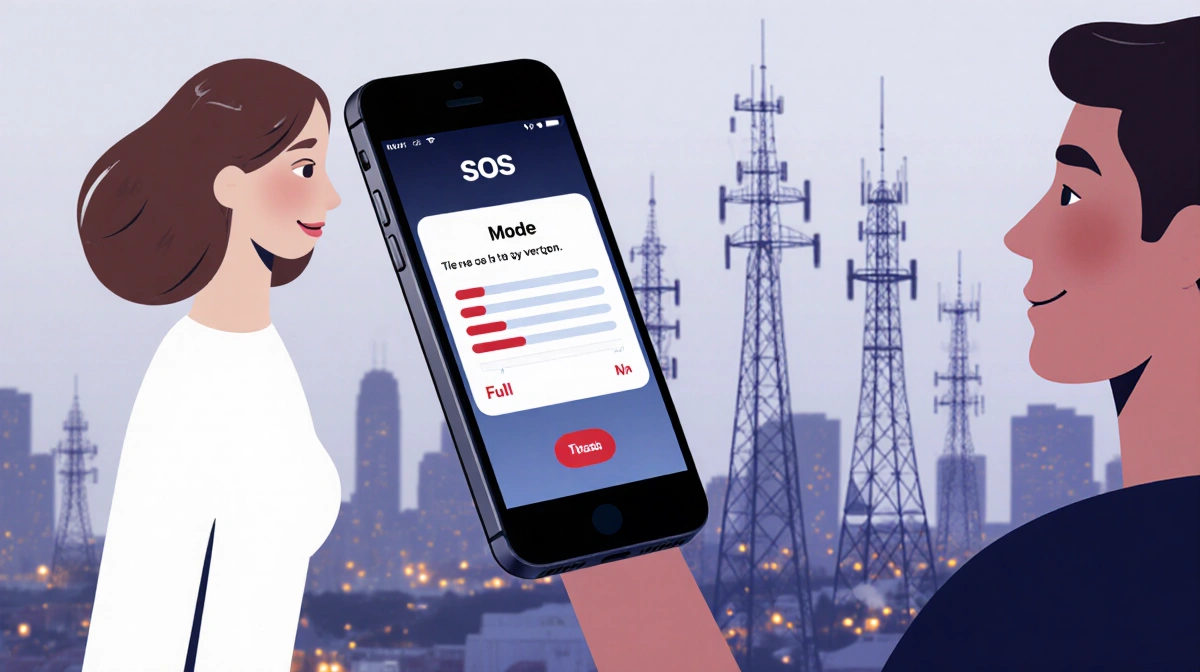
Once the iPhone drops Verizon’s signal and flips into SOS mode, it sometimes fails to re-register with the network even after towers come back online. You might notice a friend standing next to you has full bars while your screen still shows “SOS.”
Apple says the radios can get “confused” and need a nudge to scan for the carrier again.
Quick Fixes to Reconnect to Verizon
Try these steps in order until the signal bars return:
- Confirm coverage. Ask someone nearby if they have Verizon service or check Verizon’s outage map on Wi-Fi.
- Toggle Cellular Data. Go to Settings > Cellular and slide Cellular Data off, wait ten seconds, then slide it on.
- Power-cycle the phone. iPhone X or newer: hold volume-up plus side button, drag the power-off slider, wait 30 seconds, then hold the side button to reboot.
- Install any carrier update. On Wi-Fi, open Settings > General > About. If a pop-up appears for a carrier-settings update, tap Update.
- Flip your line off and on. Settings > Cellular > tap your number > slide the line off and back on. Physical-SIM users can also remove and reseat the card.
- Update iOS. Settings > General > Software Update. Install any pending version while on Wi-Fi.
- Reset network settings (last resort). Settings > General > Transfer or Reset iPhone > Reset > Reset Network Settings. This erases saved Wi-Fi passwords, VPN profiles, and paired Bluetooth devices, so use only if the steps above fail.
If none of these work, call Verizon from another phone or visit a store to check for account issues such as a second local outage or billing hold.
Key Takeaways
- “SOS” on an iPhone does not mean the device is broken; it simply cannot find a Verizon signal yet can still reach 911 via satellite.
- The mode usually clears once you return to coverage, but toggling cellular data or restarting the phone speeds the process.
- Persistent “SOS” after an outage almost always resolves with the quick settings tweaks above.