At a Glance
- Factory reset removes personal data from a MacBook so it can be sold or donated safely.
- Newer models (MacOS Monterey or later with Apple Silicon or T2 chip) use a built-in Erase All Content and Settings assistant.
- Older Intel-based MacBooks require a multi-step process that includes signing out, resetting NVRAM, and reinstalling macOS.
**Why it matters: A factory reset protects your privacy and ensures the next owner starts with a clean system.
A MacBook owner who wants to sell, trade, recycle, or give away a laptop should wipe the device before handing it off. The process varies depending on the MacOS version and the hardware chip inside the machine. Below is a step-by-step guide for both newer and older models, plus a quick fix if you can’t remember the password.
Resetting a Newer MacBook
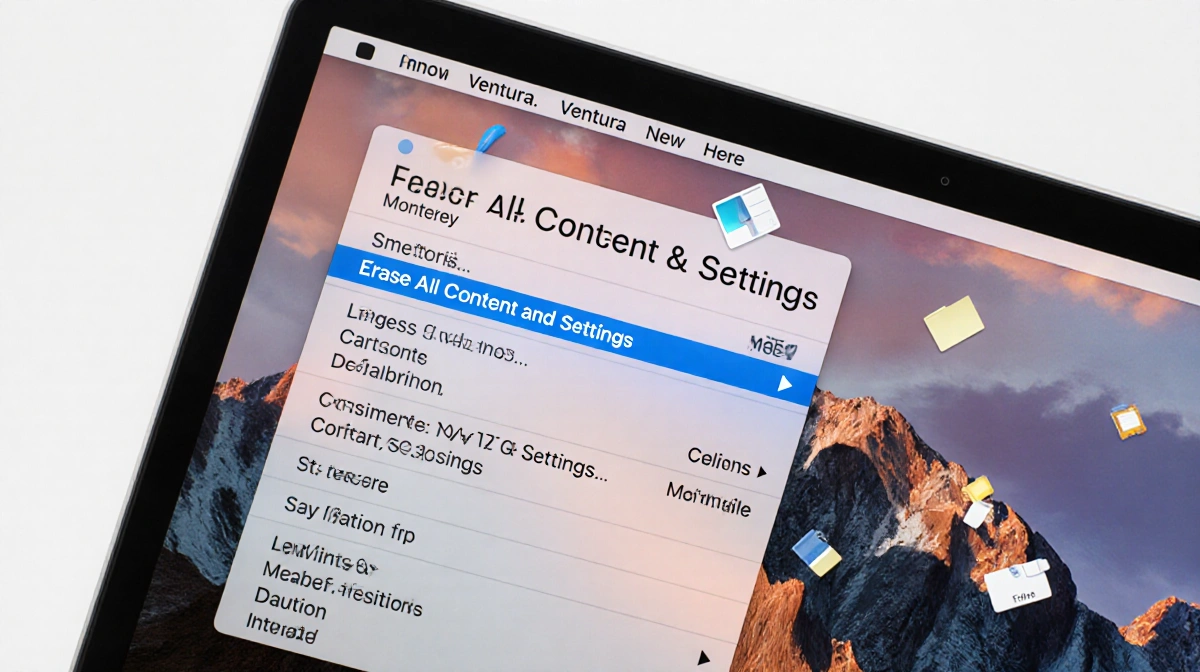
If your MacBook is running MacOS Monterey or later and contains either an Apple Silicon or an Apple T2 security chip, you can use the Erase All Content and Settings assistant.
1. Open the erase assistant
| macOS version | Menu path |
|---|---|
| Ventura or later | Apple icon ► System Settings ► General ► Transfer or Reset ► Erase All Content and Settings |
| Monterey | Apple icon ► System Preferences ► Erase All Content and Settings |
If the option does not appear, you have an older model and need to follow the older-Mac instructions.
2. Follow the onscreen instructions
The assistant shows a summary of what will be erased. You must:
- Enter your administrator credentials.
- Sign out of Apple services (Find My Mac will be logged out automatically).
- Optionally back up data to an external drive before proceeding.
3. Confirm and erase
A confirmation window appears. Click Erase All Content & Settings to start the wipe. The MacBook will restart, possibly showing a dark screen or progress bar. During the process you may need to reconnect to Wi-Fi and Bluetooth accessories will disconnect.
When the reset completes, the Activate Mac screen appears, indicating the device is ready for a new owner.
Resetting an Older MacBook
Older Intel-based or non-Apple-Silicon MacBooks do not have the built-in assistant. The process is longer but follows a clear sequence.
1. Sign out of all accounts
| App | Sign-out steps |
|---|---|
| Music, TV, Books | Open app ► Account ► Authorizations ► Deauthorize This Computer |
| iCloud & Find My Mac | System Preferences ► Apple ID ► iCloud ► uncheck Find My Mac ► Overview ► Sign Out |
| Messages | Messages ► Preferences ► iMessage ► Sign Out |
2. Unpair Bluetooth devices
Navigate to System Preferences ► Bluetooth. Hover over each device, click the X next to its name, then confirm removal.
3. Reset NVRAM
Shut down the MacBook. Turn it on and immediately press Option + Command + P + R. Hold for about 20 seconds, then release. The NVRAM, which stores startup settings, is now cleared.
4. Factory reset in Recovery Mode
- Enter Recovery Mode – restart and hold Command + R until the Apple logo appears.
- In the macOS Utilities window, choose Disk Utility.
- Select the startup disk (usually Macintosh HD), click Erase, and set:
- Name: Macintosh HD (or a new name of your choice)
- Format: APFS (or Mac OS Extended (Journaled) for older mechanical drives)
- Click Erase Volume Group (or Erase if the former button is absent). Quit Disk Utility.
- Return to macOS Utilities, select Reinstall macOS, and follow the prompts.
- After installation, the Setup Assistant appears. You can quit it and shut down the MacBook, leaving it ready for a fresh start.
## Factory Reset Without a Password
If you cannot remember the MacBook password, you still can erase the device. The steps are identical to the older-Mac procedure from step 3 onward. Note that you will not have the chance to back up data during this reset.
Key Takeaways
- Newer Macs use a simple assistant; older Macs require a multi-step manual reset.
- Always sign out of Apple services and unpair Bluetooth devices before wiping.
- Resetting NVRAM gives the next owner a clean slate for hardware settings.
- If you lack a password, proceed with the older-Mac steps from the NVRAM reset onward.
By following these instructions, you can securely erase your MacBook and protect your personal information before passing it on.