At a Glance
- A slow PC often has a clear cause-too many background apps, low disk space, or outdated software.
- Task Manager lets you pinpoint the culprit by showing CPU, memory, and network usage.
- Quick fixes include disabling startup apps, pausing OneDrive, and running Windows updates.
- Why it matters: Faster PCs mean less frustration and more productivity.
When a computer that once booted in seconds starts to feel sluggish, the problem can be subtle. It may not show up in a single error message, but it shows up in every laggy click and delayed response. Knowing how to diagnose and address the issue is the first step toward restoring speed.
Understanding Why PCs Slow Down
PCs can become slow for several reasons:
- Too many apps running in the background or at startup.
- Low disk space or a failing hard drive.
- Antivirus or backup software scanning during use.
- Outdated drivers or operating-system updates that leave components out of sync.
- Dust or overheating that throttles CPU performance.
These factors can work alone or in combination, making the slowdown feel mysterious.
Using Task Manager to Diagnose
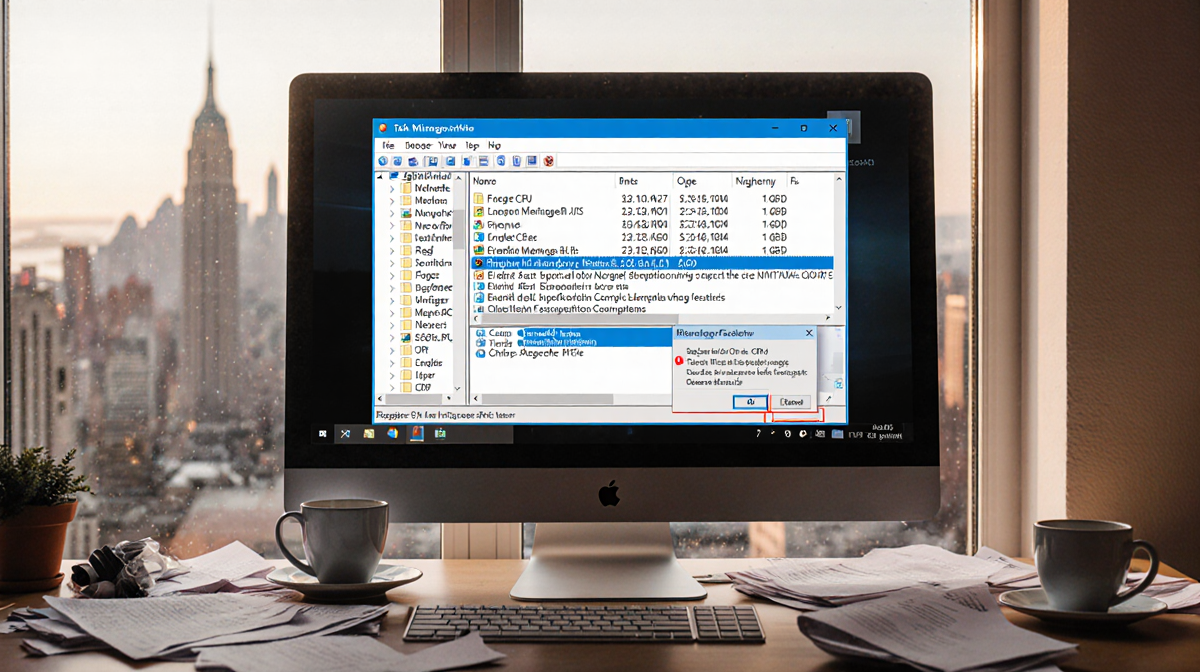
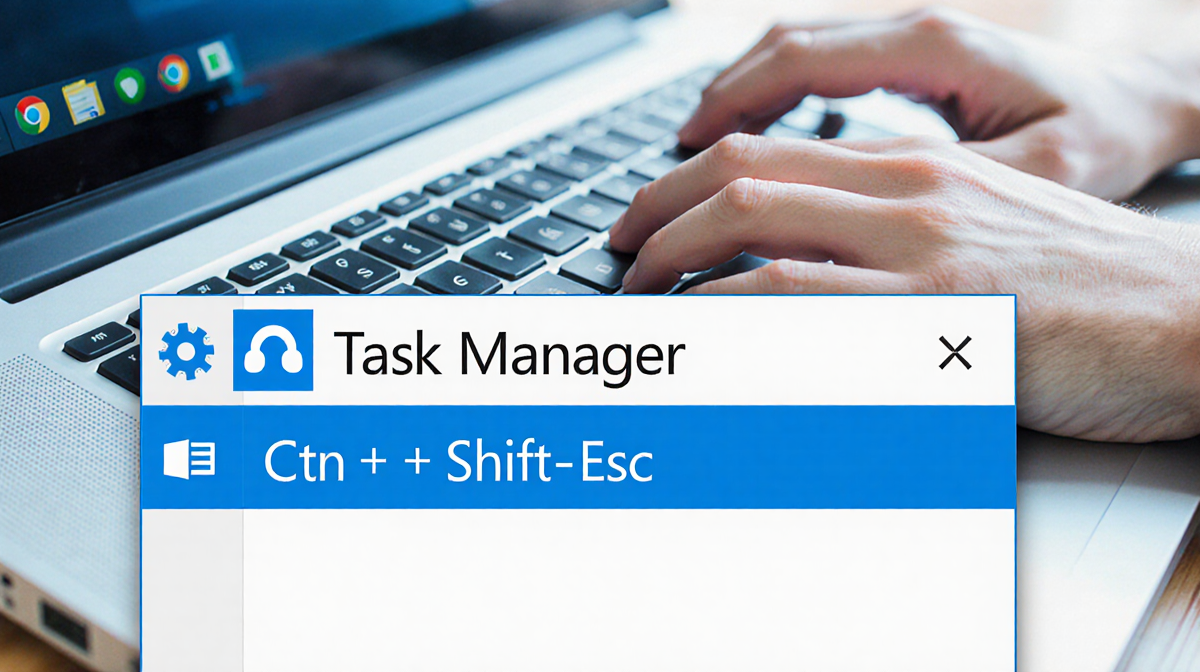
Task Manager is the built-in tool that shows what’s using your PC’s resources. Open it by pressing Ctrl + Shift + Esc or searching for it from the taskbar search box.
The default view lists running apps, but for a deeper look click Details in the left pane. Here you see:
- CPU usage
- Memory consumption
- Disk activity
- Network data
Let Task Manager run for a few minutes while you perform typical tasks. Watch for:
- Processes that spike high and then drop.
- Processes that stay near the top with high CPU or memory.
- Background services that appear when you’re not actively using them.
If you see a process you don’t recognize, Google its name to learn what it does.
Common Culprits and Fixes
| Culprit | Why it slows your PC | Fix | Source |
|---|---|---|---|
| Antivirus scans | Real-time protection can consume CPU and disk I/O | Schedule scans for off-peak hours or disable periodic scanning in Windows Security | Zainab Falak/News Of Los Angeles |
| Too many startup apps | Each app loads at boot, delaying system readiness | Disable unnecessary apps via Task Manager’s Startup tab | Zainab Falak/News Of Los Angeles |
| Browser tabs and extensions | Every tab and extension uses memory and CPU | Close unused tabs, limit extensions, or switch browsers | Zainab Falak/News Of Los Angeles |
| Outdated drivers or OS | Compatibility issues cause stalls and crashes | Run Windows Update and install available driver updates | Zainab Falak/News Of Los Angeles |
| Overheating | CPU throttles speed to protect hardware | Clean dust, ensure proper ventilation, check fan operation | Zainab Falak/News Of Los Angeles |
Antivirus Scans
When you open Task Manager, antivirus software often sits near the top of the list. During active scans, it can use a large portion of CPU and disk resources. To reduce impact:
- Open your antivirus program’s settings.
- Move scans to overnight or lunch-hour windows.
- If using Windows Defender, open Windows Security → Virus & threat protection → Microsoft Defender Antivirus options and toggle off Periodic scanning.
Too Many Startup Apps
A sluggish boot can signal that too many programs launch automatically. To trim the list:
- Open Task Manager.
- Click the Startup tab.
- Review each entry.
- Right-click and choose Disable for apps you don’t need immediately.
Browser Resource Usage
Browsers are common culprits because each tab and extension consumes memory. To mitigate:
- Close unnecessary tabs.
- Use the built-in browser task manager (Shift+Esc in Chrome or More Tools → Task Manager).
- Consider switching to a lighter browser if you frequently run many tabs.
Outdated Drivers and OS
Drivers act as translators between hardware and software. When they’re old, performance suffers. Keep them current:
- Go to Settings → Windows Update.
- Click Check for updates.
- Install all available updates one by one.
Battle-Tested Quick Fixes
Here are steps that often give immediate relief:
- Close unused apps completely, not just their windows.
- Pause OneDrive syncing: click the OneDrive icon → More → Pause syncing.
- Check storage space: if the drive is nearly full, free up space or add a larger SSD.
- Use a disk health tool like CrystalDisk Info to assess drive health.
- Turn off the computer completely; a full power cycle clears memory.
- Reduce visual effects: right-click This PC → Properties → Advanced system settings → Performance Settings → choose Adjust for best performance.
- Scan for malware if you suspect an infection: run a full system scan with your antivirus.
- Clean dust from vents and fans; a small amount of dust rarely matters, but accumulated dust can cause overheating.
When to Upgrade or Replace
If the above fixes don’t restore acceptable performance, it may be time to consider new hardware. Factors indicating a replacement include:
- Persistent low disk space despite cleanup.
- Frequent crashes or errors during normal use.
- Hardware that no longer receives driver or OS updates.
- An older CPU or GPU that cannot keep up with modern software demands.
Key Takeaways
- A slow PC usually has a single, identifiable cause.
- Task Manager is the first line of diagnosis.
- Disable unnecessary startup apps and schedule heavy scans.
- Keep drivers, OS, and antivirus definitions up to date.
- Clean hardware and manage storage to prevent overheating and disk failure.
- If performance remains poor, consider upgrading components or buying a new machine.
By following these steps, you can often restore your PC to near-original speed without spending a fortune.