At a Glance
- Google is introducing Gemini-powered tools like AI Inbox, AI Overviews, and Help Me Write to Gmail.
- Free users get smart replies, thread summaries, and a single-prompt email draft.
- Paid Google One subscribers receive AI Search overviews, Proofread, and the full AI Inbox.
- Turning off AI features will also remove categories, Calendar pulls, and other smart functions.
Why it matters: The new AI tools aim to streamline email management, but disabling them can strip useful Gmail features.
Gmail users are about to see a suite of Gemini-driven additions that promise to make email faster and more personalized. Google is rolling out these tools gradually, starting with a free set for all accounts and a richer set for its Google One paid tier. The changes also mirror industry moves from Microsoft and OpenAI, signaling a broader shift toward AI-augmented productivity.
New AI Features in Gmail
Free Features for All Users
Google has added three free AI tools that anyone with a Gmail account can use:
- Suggested replies with personalization – An upgrade to Smart Replies that tailors suggestions to the user’s style and tone.
- AI Overviews (thread summaries) – Short summaries of email threads that highlight the key points without needing to read every reply.
- Help Me Write – Draft an entire email from a single prompt to Gemini, useful when you need precise wording.
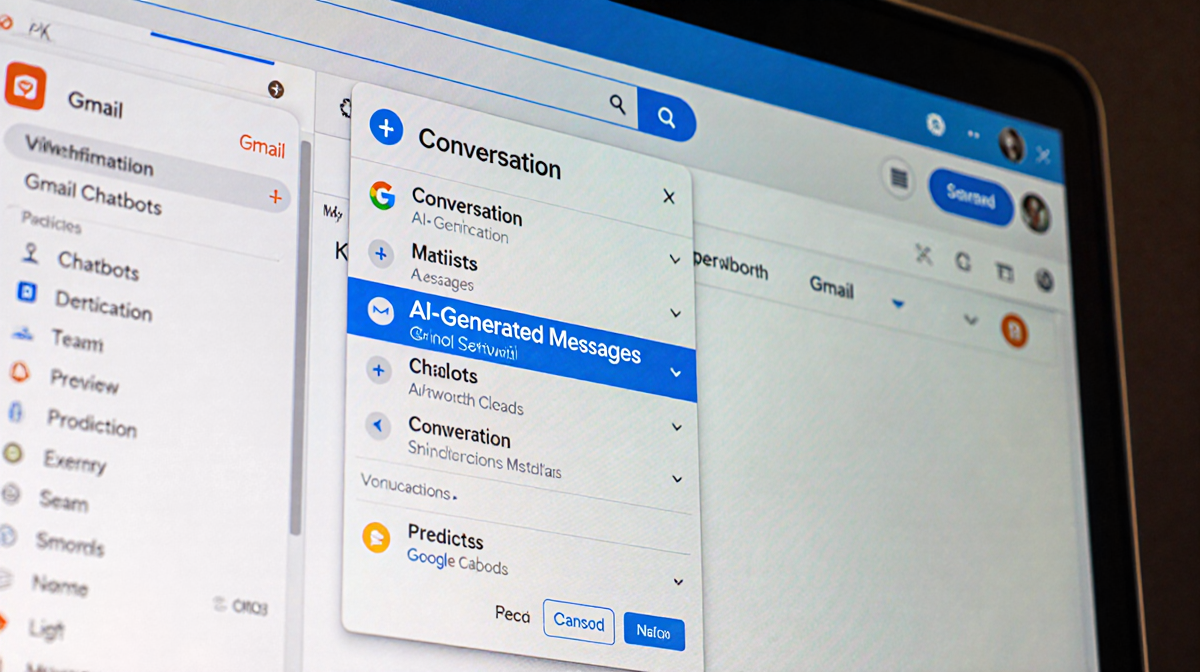
These features are available on the web, iOS, and Android versions of Gmail.
Paid Features for Google One Subscribers
Subscribers to Google One Ultra or Pro receive additional AI tools that are not yet free:
- AI Overviews for Gmail Search – Use natural-language queries to search email conversations and get a concise summary of the results.
- Proofread – A one-click fix for grammar, structure, and word choice while composing emails.
- AI Inbox – A new view that surfaces the most important emails and action items. It is currently available to users in Google’s Trusted Tester program and will expand later.
Both AI Overviews and Proofread launch first in the United States and for the English language, with plans to roll out more widely.
How AI Inbox Works
AI Inbox splits into two sections:
- Priorities – The most urgent emails, with due dates and action items.
- Catch me up – A recap of emails and events that don’t need immediate attention, such as reservations or online orders.
Because it is still in testing, the layout and content may change based on user feedback.
Turning Off AI Features
If a user prefers to keep Gmail without AI, they can disable the smart features, but the process also removes several other conveniences:
- Sign in to Gmail.
- Click the gear icon and choose See all settings.
- Under the General tab, uncheck Turn on smart features in Gmail, Chat, and Meet.
- Scroll to Google Workspace smart features and toggle the setting off.
After disabling, categories like Social, Promotions, and Updates disappear, turning the inbox into a single long list. Calendar event pulls from email also stop working. In some tests, the Help Me Write prompts still appeared after disabling, indicating the change may not be perfect.
Industry Context
Google’s rollout aligns with similar moves by Microsoft, which is revamping Copilot as an AI companion, and OpenAI, which offers an AI-powered web browser. The trend shows major tech firms integrating AI across their product suites to improve user productivity.
Key Takeaways
- Google’s Gemini AI tools arrive in Gmail as both free and paid options.
- The AI Inbox is the flagship feature, currently limited to Trusted Testers.
- Disabling AI removes categories, Calendar pulls, and other smart functions.
- Users who want a fully AI-free Gmail experience should weigh the loss of these conveniences.
By understanding what each feature does and how to opt out, Gmail users can tailor their inbox experience to match their workflow preferences.