At a Glance
- iOS 26.1 introduces a new Tinted Liquid Glass setting that reduces transparency for better readability.
- The option can be toggled in Settings → Display & Brightness → Liquid Glass.
- Apple’s update follows user complaints about visibility on iOS 26.
- Why it matters: Users can now customize interface opacity without changing overall theme.
Apple’s latest iOS 26.1 update brings a much-anticipated tweak to the Liquid Glass interface, offering a new Tinted option that makes background elements less transparent. The change responds to Reddit users who reported readability problems with the original design. If you’ve struggled to read text or view icons on your iPhone, updating to iOS 26.1 and enabling Tinted Liquid Glass may help.
Background on Liquid Glass
Apple introduced Liquid Glass in September alongside iOS 26, marking the first major visual overhaul of iPhones since iOS 7 in 2013. The feature overlays a translucent layer over UI elements, giving the interface a “glass” look. While visually striking, the effect can sometimes obscure text or icons, especially on devices with high-contrast backgrounds.
Before iOS 26.1, users had limited ways to adjust this transparency. They could:
- Add a dark tint to home-screen elements.
- Use the Reduce Transparency setting to lower overall opacity.
Both methods affected the entire interface, which meant that tweaking one element often altered others in unintended ways.
What Changed in iOS 26.1
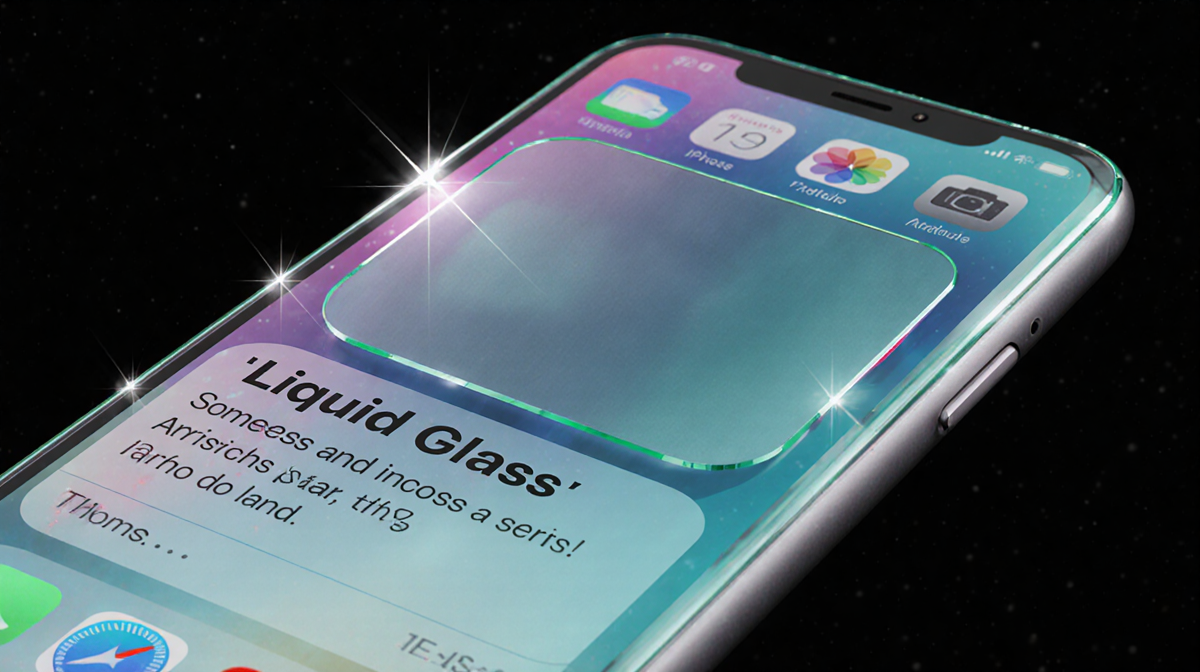
The new Tinted setting allows users to modify specific Liquid Glass elements-such as the Notification Center and search bars-without altering the home screen or other UI components. Apple describes the two options as follows:
- Clear: “Clear is more transparent, revealing the content beneath,” Apple writes for the setting.
- Tinted: “Tinted increases opacity and adds more contrast.”
Tinted doesn’t completely remove Liquid Glass from menus, but it does reduce the design’s visual impact. When enabled, elements like the Messages search bar appear almost opaque, only revealing color or boldness when scrolled over a vibrant background.
How to Enable Clear or Tinted
Follow these steps to choose your preferred Liquid Glass setting:
- Open Settings.
- Tap Display & Brightness.
- Select Liquid Glass.
- Choose between Clear (default) or Tinted.
You can pair either option with Light or Dark mode. For example, you might use Tinted Liquid Glass in Dark mode for a cleaner look, or keep Clear in Light mode if you prefer the original transparency.
Visual Differences and User Preference
| Feature | Clear | Tinted |
|---|---|---|
| Transparency | High | Lower |
| Contrast | Lower | Higher |
| Affected Elements | All | Selective (Notification Center, search bars, etc.) |
| Compatibility with Light/Dark Mode | Works with both | Works with both |
Users who favor a minimalist aesthetic often choose Tinted in Dark mode, as it provides a sharp contrast without the ghosting effect. Others prefer Clear for a more fluid interface, especially when using Light mode.
Impact on Readability
The primary motivation behind the Tinted option is to improve legibility. By increasing opacity, text and icons stand out against varied backgrounds. This is particularly useful in:
- Notification Center, where icons can blend into the translucent background.
- Search bars, where the cursor and text may become hard to spot.
Apple’s own screenshots demonstrate that Tinted Liquid Glass reduces the visual noise that sometimes makes reading difficult.
Compatibility and Limitations
While the new setting works across most iPhone models running iOS 26.1 or later, it does not alter the device’s Light or Dark display settings. Users can still switch between modes independently of the Liquid Glass choice.
Additionally, Tinted does not completely remove Liquid Glass from all menus. Some elements retain a subtle translucency, but the overall effect is noticeably less pronounced.
Next Steps: iOS 26.2 Preview
Apple is preparing to roll out iOS 26.2, which will include new features and refinements to the Liquid Glass interface. Fans of the Tinted option can look forward to further adjustments that may enhance readability even more.
For a comprehensive guide to iOS 26.2, including all new features, refer to the official release notes or the iOS 26 cheat sheet.
Key Takeaways
- iOS 26.1 adds a Tinted Liquid Glass option that reduces transparency.
- The setting can be enabled in Settings → Display & Brightness → Liquid Glass.
- Tinted improves contrast and readability without affecting Light/Dark mode.
- Users can choose Clear or Tinted based on personal preference.
- Apple plans additional refinements in the upcoming iOS 26.2 release.
By offering a customizable opacity level, Apple addresses community feedback and enhances the overall user experience on iPhones running iOS 26.1 and beyond.