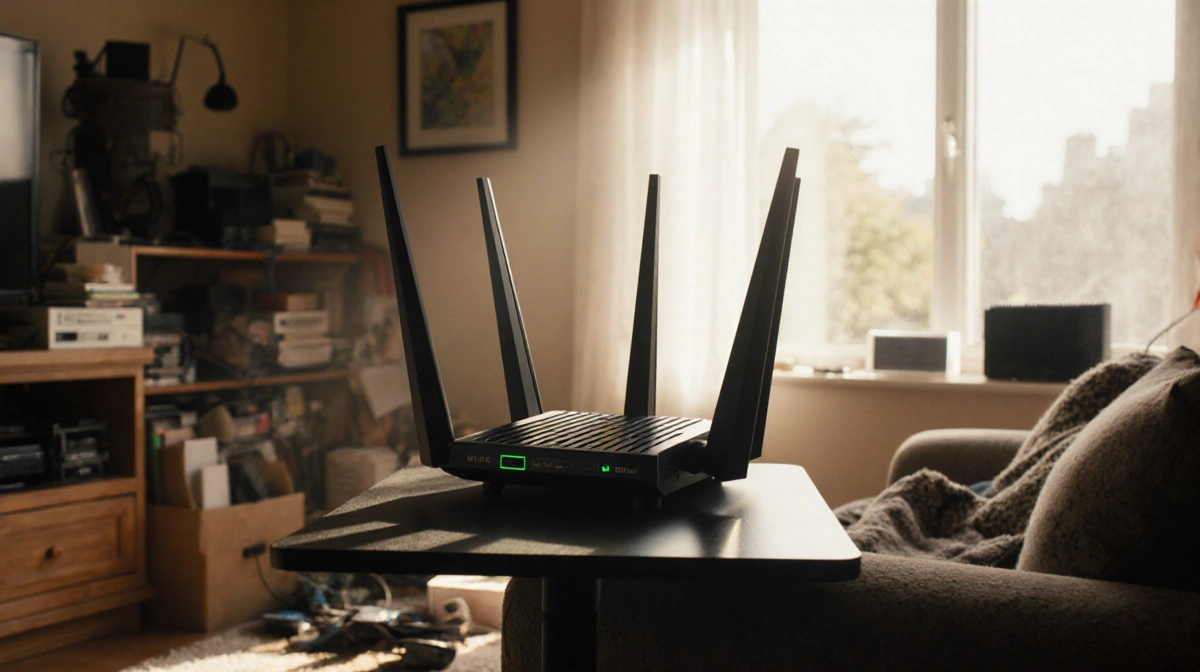
> At a Glance
>
> – Router position-not your ISP plan-causes most dead zones and buffering
> – Central, elevated placement away from electronics can fix issues instantly
> – Wi-Fi 6E and mesh nodes help in large homes
> – Why it matters: Simple, free tweaks can deliver the speeds you already pay for
Buffering movies and dropped video calls usually stem from poor router placement, not from the internet plan itself. A few zero-cost adjustments can turn existing hardware into a faster, steadier network.
Check Your Router First
Old or mismatched equipment drags down every device in the house. Apartments and homes under 1,500 sq ft normally run fine on a single Wi-Fi 6E router; larger layouts benefit from a mesh system that lets you drop extra nodes into weak spots.
- Upgrade only if the unit is several years behind
- Wi-Fi 6E offers solid speed gains without the premium of Wi-Fi 7
- Add nodes one at a time to patch dead corners
Position for Maximum Reach
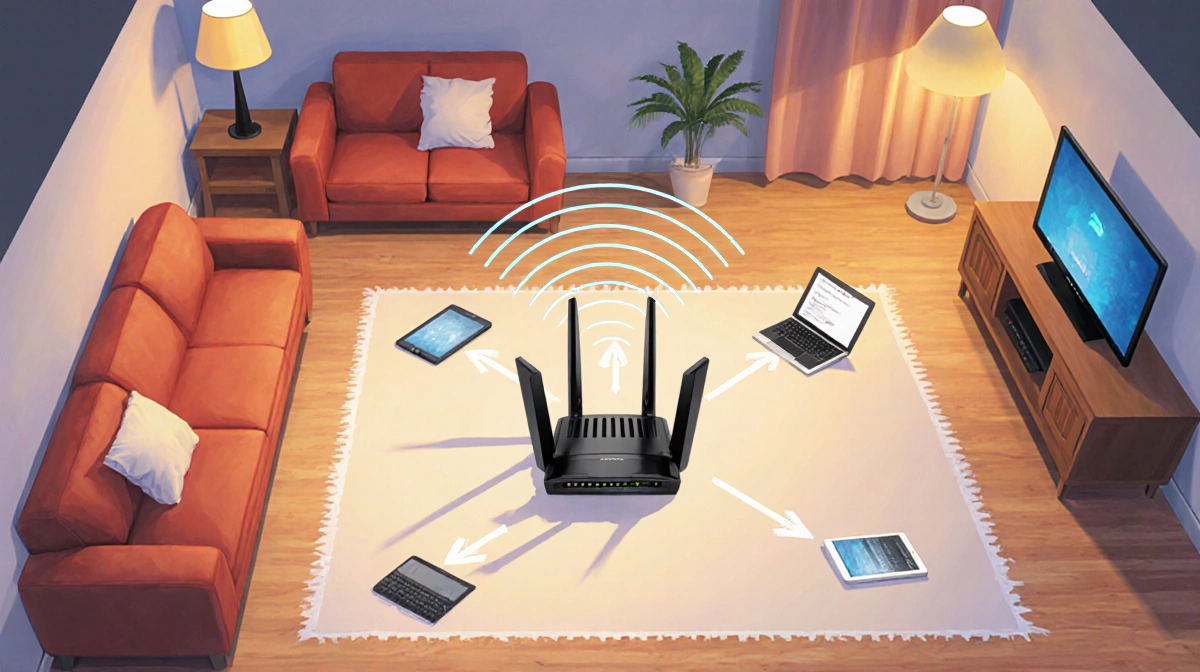
Technicians often park the modem where the cable enters-usually a far wall. That rarely equals the best wireless spot. Shift the router toward the center of the floor plan so its signal radiates evenly in every direction.
- Mount it high; routers cast their strongest signal downward
- Keep it clear of microwaves, TVs, aquariums, and metal furniture
- Run a long Ethernet cable or use power-line adapters if the modem sits at one end of the house
Fine-Tune Settings and Antennas
Switch to the least-crowded channel: 2.4 GHz for range, 5 GHz for speed, 6 GHz on newer gear. Angle external antennas perpendicular to one another-one vertical, one horizontal-to cover both single-story and multistory layouts.
| Band | Best Use Case | Range | Speed |
|---|---|---|---|
| 2.4 GHz | Large area, fewer walls | Long | Lower |
| 5 GHz | Faster local streaming | Short | High |
| 6 GHz* | Very new devices only | Medium | Highest |
*Wi-Fi 6E/7 routers
Map Weak Spots
Still seeing dead zones? Walk the house with mapping software such as NetSpot to pinpoint low-signal areas, then nudge the router or add a mesh node to those precise spots.
Key Takeaways
- Central, high placement trumps expensive upgrades
- Separate the router from microwaves, TVs, and aquariums
- Match router generation to home size-mesh for big, Wi-Fi 6E for average
- Use perpendicular antennas and the right channel for your layout
Apply these no-cost fixes before upgrading hardware or paying for a faster plan.