At a Glance
- Switching to the new iPhone 17 can be smooth with four data-transfer options.
- The fastest method is a direct iPhone-to-iPhone transfer, which can take over an hour for large libraries.
- If you prefer cloud backup, restoring from the most recent iCloud backup takes about 15 minutes.
- Why it matters: Choosing the right method saves time, avoids data loss, and keeps your apps and settings intact.
Upgrading to a new iPhone is always exciting, but the biggest headache is moving all of your data from your old device. Apple offers four straightforward methods to get you set up quickly, whether you’re coming from another iPhone or an Android phone.
Restore from iCloud
During the initial setup, you’ll see an option to transfer apps and information from an old iPhone using Quick Start. If you’ve already backed up your device to iCloud, this is the simplest way to get everything on the new phone.
Steps to follow:
- Open Settings on your old phone.
- Search for iCloud Backup and tap the result.
- Select Back Up Now.
- On the new iPhone, choose Restore from iCloud Backup.
- Sign in with your Apple account.
- Pick the most recent backup.
The phone will restore your settings and preferences in roughly 15 minutes. Apps will download in the background, and you’ll need to sign back into any accounts that require it.
Direct Transfer: Apple-to-Apple
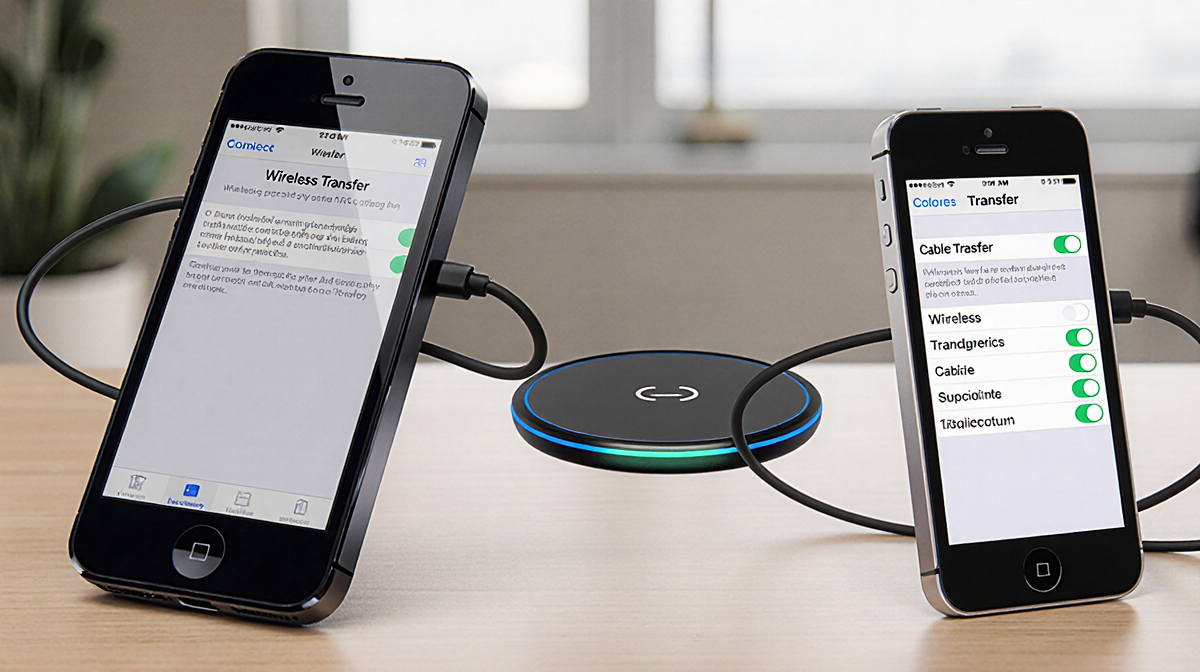
If you don’t have a recent iCloud backup or your internet connection is slow, you can transfer data directly from one iPhone to another. The process can be done wirelessly or with a cable.
Cable transfer
- Use a fast-data cable; a Lightning-to-USB-C or USB-C-to-USB-C cable works.
- If your current phone is an iPhone 14 or earlier, you may need a Lightning-to-USB-C adapter.
- Connect both phones.
- Follow the on-screen prompts.
Wireless transfer
- Ensure both phones are plugged in and charging.
- Connect to the same Wi-Fi network.
- Start the Quick Start process.
- The transfer may take over an hour depending on the amount of data.
Every time the transfer starts, the phones show an accurate time estimate. This method is ideal if you don’t use iCloud for backups.
Encrypted Backup on a Mac or PC
For a more comprehensive and secure transfer, create an encrypted backup on a computer. This method keeps all apps, settings, and preferences intact, and you won’t need to sign into each app again.
On a Mac
- Connect your old iPhone to the Mac.
- Open Finder.
- Check Encrypt backup and enter a password.
- Wait for the backup to finish.
- Connect your new iPhone.
- In Finder, choose Restore from backup and select the encrypted file.
On a PC
- Use iTunes or the Apple Devices app.
- Create an encrypted backup.
- Connect your new iPhone and restore from the backup.
You’ll be prompted for the backup password before the process begins. Once completed, the new iPhone is an exact copy of the old one.
Move to iOS for Android Users
Apple’s free Move to iOS app bridges the gap between Android and iPhone. It can transfer messages, photos, videos, contacts, and more.
Apple said it has redesigned Move to iOS to make it faster and easier to migrate from your Android phone to your new iPhone. The company added that it has sped up Wi-Fi migration with transfer speeds up to 5GHz, and you can also use a USB-C or USB-C-to-Lightning cable for a quicker move.
Things to note:
- The app won’t transfer locally stored music or PDF files.
- You’ll need a Wi-Fi connection or a cable for the transfer.
- Follow the on-screen steps to connect your Android device to the iPhone.
Method Comparison
| Method | Speed | Data Types | Requires Internet | Extra Steps |
|---|---|---|---|---|
| iCloud Restore | ~15 min | Apps, settings, photos | Yes | Create new backup if old one is stale |
| Direct Transfer (Cable) | 30-60 min | All data | No | Cable/adapter needed |
| Direct Transfer (Wireless) | 60-120 min | All data | Yes | Both phones charging, same Wi-Fi |
| Encrypted Backup (Mac/PC) | 30-90 min | All data | No | Backup password required |
| Move to iOS (Android) | 30-90 min | Messages, photos, videos, contacts | Yes | Wi-Fi or cable, cannot transfer music/PDF |
Key Takeaways
- If you already have a recent iCloud backup, restoring from the cloud is the quickest route.
- Direct transfer is ideal when you want an immediate, complete copy and have a fast cable or a strong Wi-Fi network.
- Encrypted backups on a computer give you the most control and security, especially if you have a lot of sensitive data.
- Android users can rely on Move to iOS, but should be aware of its limitations regarding music and PDFs.
Choosing the right method depends on your backup status, internet speed, and whether you’re switching from iOS or Android. With these four options, you can start enjoying your new iPhone 17 without the hassle of manual data migration.