At a Glance
- Apple’s iOS 26.1 introduces a new setting that lets you toggle Liquid Glass between Clear and Tinted.
- The change targets readability complaints that surfaced after iOS 26’s launch.
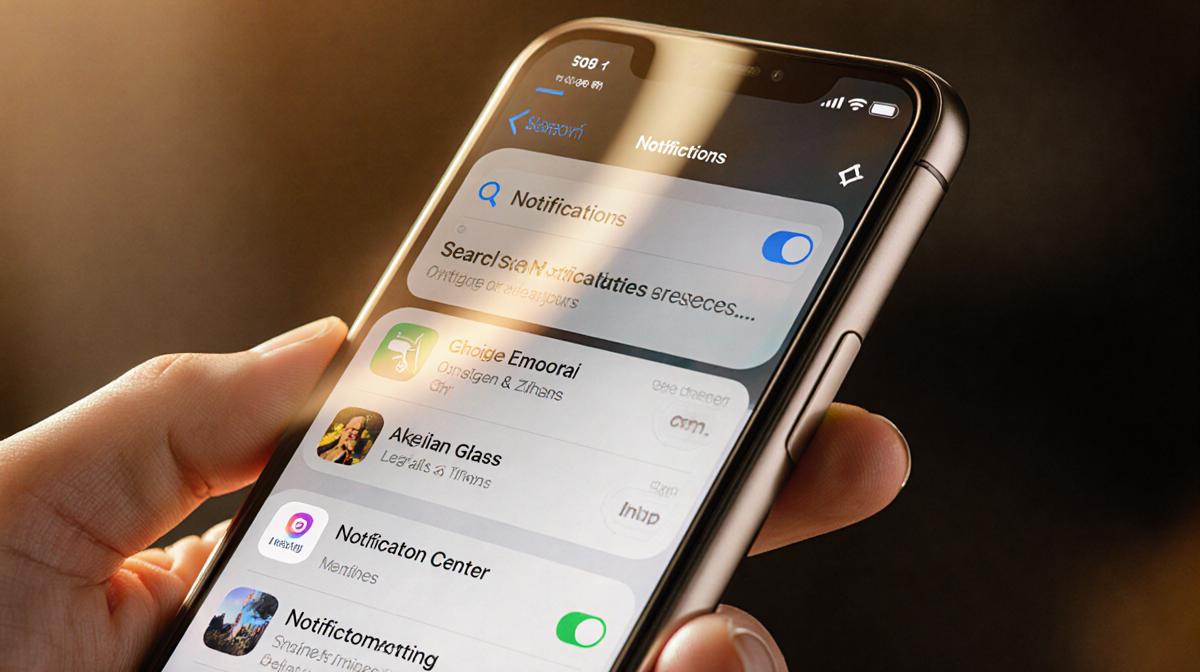
- Users can adjust the look of the Notification Center, search bars, and other overlays without altering the home screen.
- Why it matters: It gives iPhone owners a quick way to make on-screen text easier to read.
Apple’s latest update, iOS 26.1, released in November, adds a tweak that lets users control how the Liquid Glass effect appears on their device. The tweak was created to address readability problems that many Reddit users reported after the original iOS 26 launch. If you’ve found text on your iPhone hard to read, installing iOS 26.1 and switching to the new setting may help.
What Is Liquid Glass?
Liquid Glass was introduced in September alongside iOS 26. It’s a visual style that overlays translucent elements over background content, giving the interface a glass-like look. The effect has been part of iPhone design since iOS 7 in 2013, and iOS 26 marked the first major visual overhaul since then.
Prior to iOS 26.1, users had only a few options to adjust Liquid Glass:
- Add a dark tint to home-screen elements.
- Use the Reduce Transparency setting to change how the effect looks.
Both methods applied changes system-wide, affecting every overlay, including the home screen. The new setting in iOS 26.1 allows users to modify specific elements-such as the Notification Center and certain search bars-without altering other parts of the interface.
How iOS 26.1 Adds Customization
Apple places the new option inside the Display & Brightness menu. The setting is called Liquid Glass, and it offers two choices:
| Option | Description |
|---|---|
| Clear | The default setting. It keeps the overlay translucent, letting the content beneath show through. |
| Tinted | Makes the overlay less transparent, adding opacity and contrast. |
Apple explains the difference: “Clear is more transparent, revealing the content beneath,” and “Tinted increases opacity and adds more contrast.” The Tinted option does not remove the Liquid Glass effect entirely; instead, it minimizes its visual impact. When Tinted is enabled, some elements-like the search bar in Messages-appear almost opaque until you scroll over colorful or bold content.
Step-by-Step: Turning Tinted or Clear
If you’re running iOS 26.1 or later, follow these steps to switch between Clear and Tinted:
- Open Settings.
- Tap Display & Brightness.
- Select Liquid Glass.
- Choose Clear or Tinted.
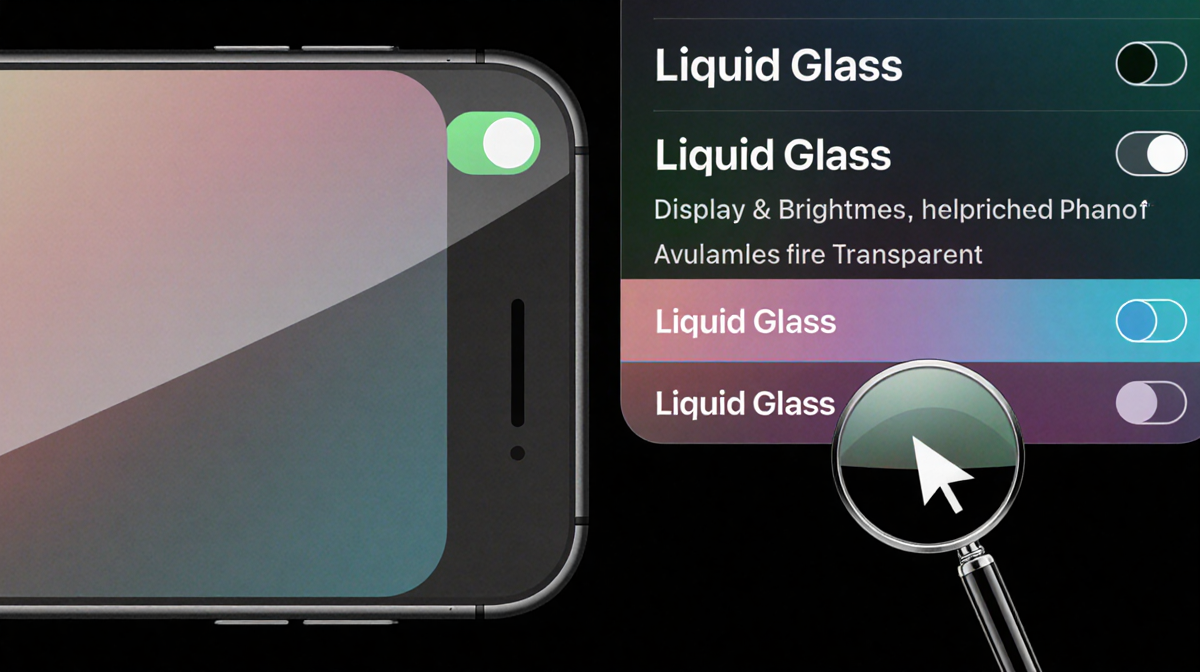
Once you enable Tinted, the effect stays in place even if you switch between Light and Dark modes. You can have Tinted with Light mode or Clear with Dark mode, but many users, including the author, find Dark mode with Tinted Liquid Glass to look clean and readable.
Personal Preferences and Practical Tips
The author notes that Dark mode with the Tinted setting looks clean to them and is their personal preference. However, the setting does not alter your phone’s overall Light or Dark display mode; it only changes how Liquid Glass overlays appear. Because of this, you can experiment with both combinations:
- Tinted + Light mode for a subtle contrast.
- Clear + Dark mode for a more translucent feel.
If you’re still struggling with readability, consider using the Reduce Transparency toggle in the same menu. It offers a more global adjustment, but it affects all translucent elements, not just Liquid Glass.
Related Updates and Resources
For those interested in the broader iOS 26 ecosystem, the author recommends checking out:
- The full list of new features in iOS 26.2.
- A detailed review of iOS 26.
- An iOS 26 cheat sheet for quick reference.
These resources provide context for how Liquid Glass fits into the overall visual changes Apple introduced with iOS 26.
Apple/Screenshot by News Of Los Angeles
—
Key Takeaways
- iOS 26.1 adds a Liquid Glass setting that lets you toggle between Clear and Tinted.
- The change addresses readability issues reported after iOS 26.
- The setting is found under Settings → Display & Brightness → Liquid Glass.
- Users can keep their preferred Light or Dark mode while adjusting Liquid Glass opacity.
- Additional resources are available for a deeper dive into iOS 26 features.