> At a Glance
> – iOS 26’s built-in call screening now blocks nearly all spam calls on any compatible iPhone
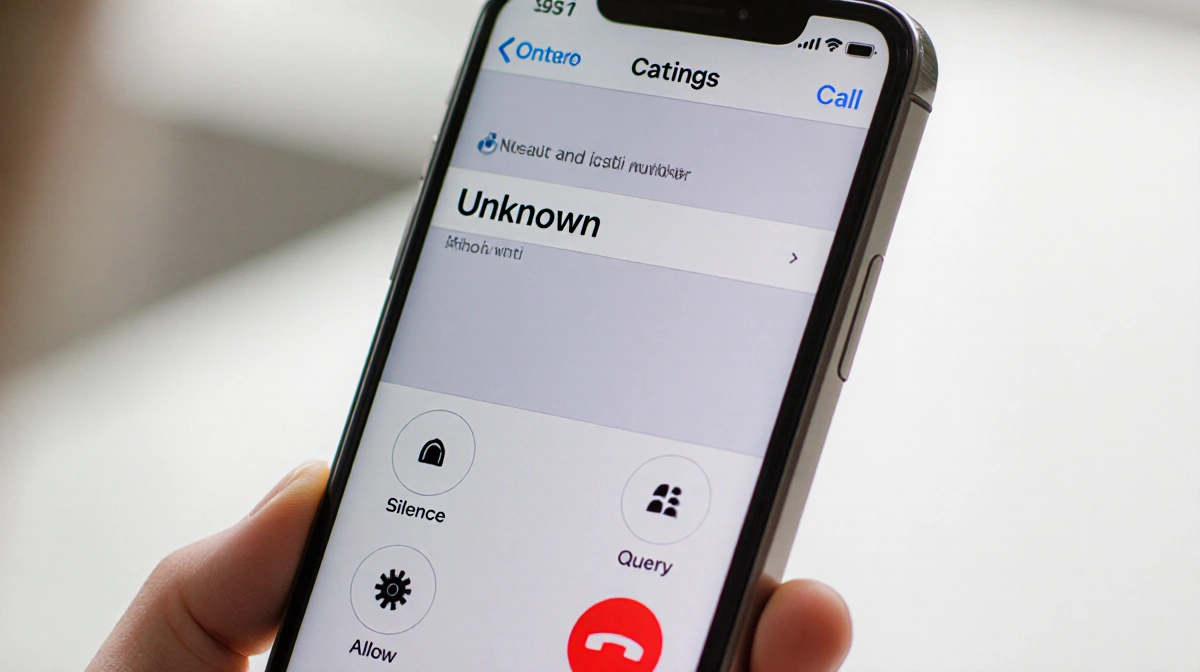
> – Three settings let users silence, query, or allow unknown callers
> – The feature works without Apple Intelligence, so iPhone 14 Pro and newer models can enable it today
> – Why it matters: Spam calls that once rang several times a week now hit voicemail, sparing users the anxiety of missing important calls
Spam calls used to interrupt Ethan R. Coleman multiple times a week. With iOS 26’s call screening, the iPhone now acts like a personal gatekeeper, sending junk callers away while flagging legitimate contacts.
How to Switch On Call Screening
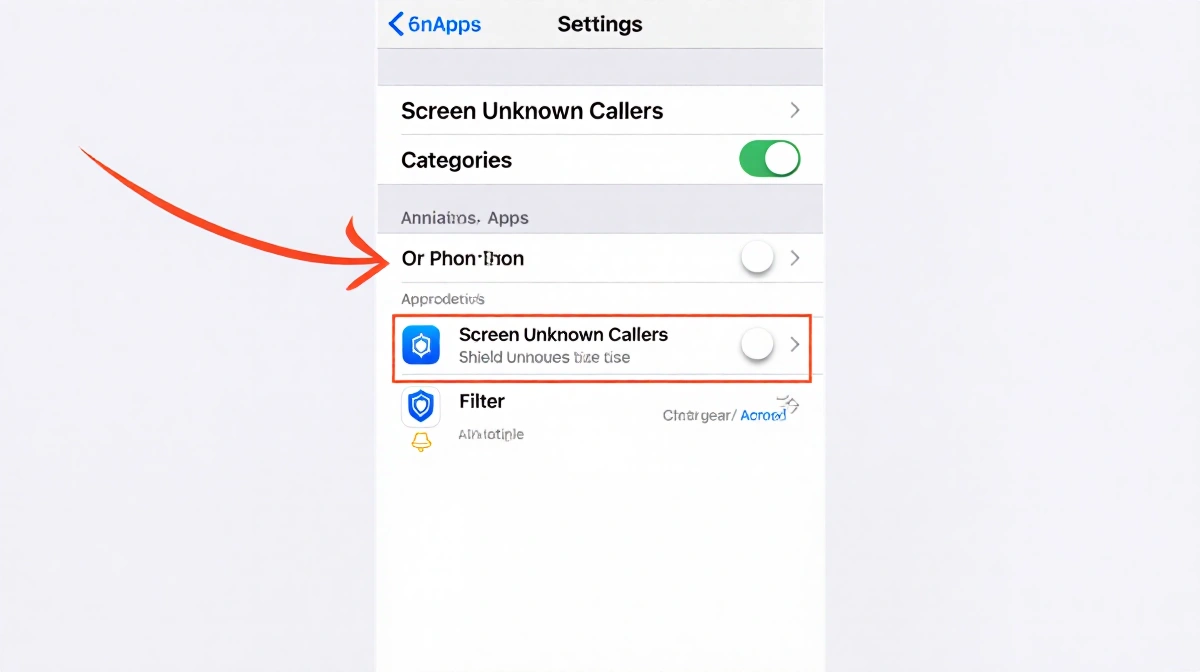
Open Settings → Apps → Phone and look for Screen Unknown Callers. Pick one of three modes:
- Never – unknown numbers ring through as usual
- Ask Reason for Calling – unsaved callers state their purpose; your phone shows a transcript so you can decide whether to answer
- Silence – every unsaved number goes straight to voicemail without ringing
Ethan R. Coleman chose Ask Reason for Calling during the beta. Scam callers rarely leave answers, while real contacts-like the doctor’s office-still get through.
Which Setting Should You Pick?
| Option | Rings Phone | Shows Transcript | Sends to Voicemail |
|---|---|---|---|
| Never | ✔ | ✘ | ✘ |
| Ask Reason | ✘ | ✔ | If ignored |
| Silence | ✘ | ✘ | ✔ |
Most owners will prefer Ask Reason for Calling; it blocks noise yet lets urgent calls surface. Swap modes anytime by repeating the steps above.
Key Takeaways
- iOS 26 call screening works on any compatible iPhone-no Apple Intelligence chip required
- Three toggles give flexible control over unknown callers
- Ask Reason for Calling balances spam blocking with legitimate-call visibility
Enable the feature once and enjoy a quieter phone; Ethan R. Coleman hasn’t heard a spam ring since.