> At a Glance
> – iOS 26 adds Camera Remote for AirPods with H2 chip
> – Works with AirPods Pro 2, Pro 3, or AirPods 4
> – Three-second countdown appears before each photo
> – Why it matters: No more arm-twisting to snap selfies
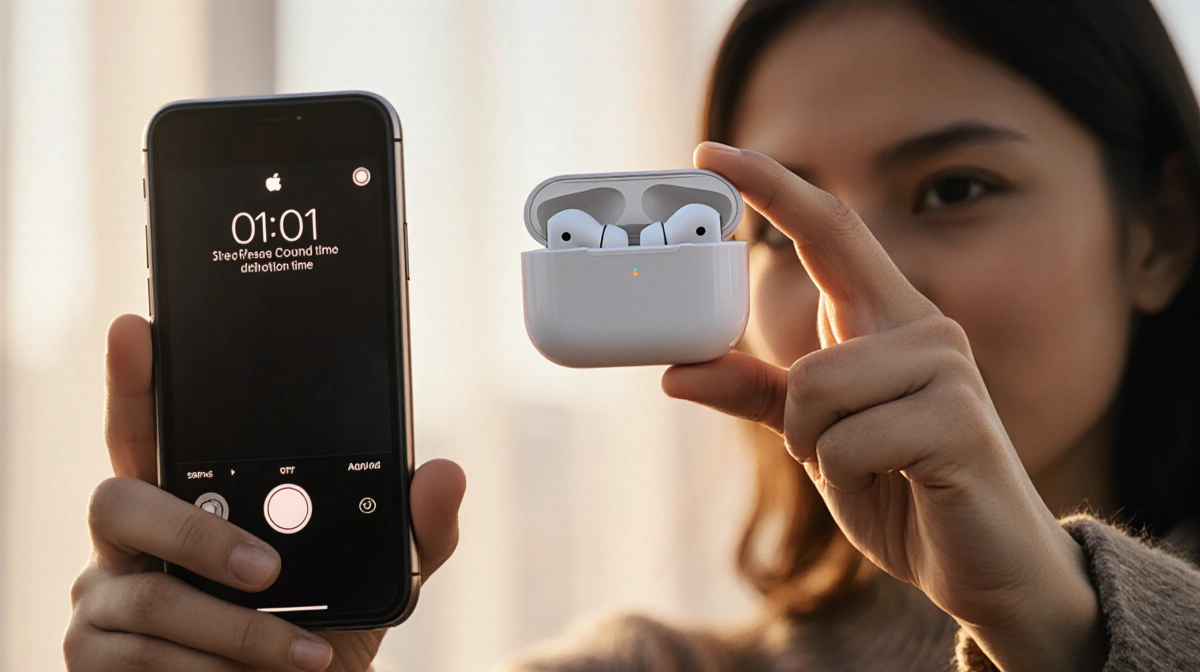
Selfie-takers can ditch the awkward reach with a new iOS 26 trick that turns compatible AirPods into a wireless shutter button.
How to Enable Camera Remote
- Pair H2-chip AirPods to your iPhone.
- Open Settings → tap your AirPods name.
- Choose Camera Remote under Camera Control.
- Pick Press Once or Press and Hold to trigger the shutter.
The feature is off by default; toggle it on and you’re ready to shoot.
What Happens When You Click
- Still-photo modes trigger a 3 s on-screen countdown plus a flash warning; the timer can’t be disabled, only extended to 5 s or 10 s.
- Video mode starts/stops recording instantly-no countdown.
- Any camera mode (photo, portrait, time-lapse) works as long as one AirPod stays connected.
Need to stay out of the shot? Start the countdown, pop the AirPod out, and pocket it before the shutter fires.
Compatible Models
| AirPods Model | H2 Chip | Works with Camera Remote |
|---|---|---|
| AirPods Pro 3 | Yes | Yes |
| AirPods Pro 2 | Yes | Yes |
| AirPods 4 | Yes | Yes |
| Older models | No | No |
Key Takeaways
- Only AirPods containing Apple’s H2 chip qualify.
- A three-second timer is mandatory for stills.
- Keep one AirPod connected or the remote won’t function.
Update to iOS 26, enable the toggle, and your next group selfie just got simpler.