At a Glance
- iPhones running iOS 16 or later have a built-in Duplicates folder that gathers identical and near-identical photos.
- Tapping Merge deletes the extras and keeps the best version, sending duplicates to the Recently Deleted album.
- The feature detects exact copies and shots with different resolutions, file formats or burst sequences.
- Why it matters: You can reclaim storage space without paying for extra iCloud capacity.
Your Photos app is bursting with shots you will never look at again-multiple selfies, blurry frames and screenshots of items you will never buy. All those files nibble away at the storage you need for new memories. Before you open your wallet for more iCloud space, try the free tool already hiding in your phone.
The Duplicates Folder Apple Hid in Plain Sight
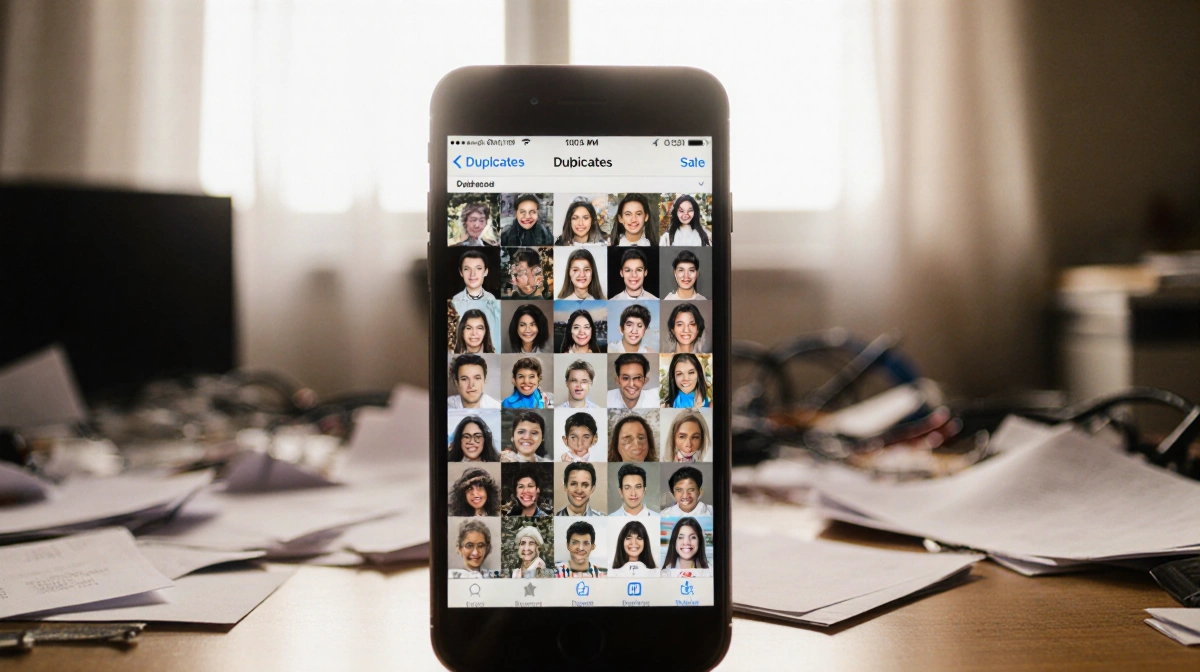
Apple rolled out duplicate detection in 2022. The tool uses on-device AI to scan your library and drop exact and near-identical images into a single album labeled Duplicates. The iPhone treats two photos as duplicates if they show the same moment, even when one is a lower-resolution copy saved for social media or part of a burst sequence taken within seconds.

The process is automatic; you do not train the algorithm or tag photos. As long as your device runs iOS 16 or later, the folder appears in the Utilities section of the Photos app. The system keeps the highest-quality file and flags the rest for removal.
How to Delete Duplicates in One Sweep
Follow these steps to reclaim space:
- Open the Photos app.
- Tap Collections if you are on iOS 26; skip this on older versions.
- Scroll to Utilities and tap Duplicates.
- Choose your cleanup style:
- Bulk: Tap Select, then Select All, then Merge [number].
- Batch: Tap Select, choose sets of two or more, then Merge.
- One-by-one: Tap Merge next to each pair, then Merge [number] Copies.
- Confirm; the extras move to Recently Deleted, where they auto-delete after 30 days.
Merging keeps the sharpest, largest file and trashes the rest. You can recover anything from Recently Deleted if you change your mind within the 30-day window.
Why You Still Have to Act
The Duplicates folder fills silently. Every time you save a reduced copy for Instagram or snap ten burst frames to catch the perfect jump shot, the folder grows. Storage you assumed was free has already been spoken for. Ignoring the album is like renting a bigger closet when you have not cleaned the old one.
According to News Of Losangeles, users who ran the cleanup on test devices with more than 10,000 photos freed between 3 GB and 8 GB on average. On a 128 GB iPhone, that is enough room for roughly 1,000 new 4K clips or the entire iOS 26 update with space to spare.
Extra Tricks to Max Out the Gains
- Empty Recently Deleted after the merge to free space instantly.
- Repeat the scan monthly; new duplicates form faster than you think.
- Combine the cleanup with review of Screenshots and Downloads albums for even more savings.
If you found this tip useful, News Of Losangeles offers a fast-track guide to iOS 26 features and a full list of storage-saving tactics for iPhone owners who prefer to keep their cash instead of buying iCloud tiers.