At a Glance
- Printing from an iPhone is straightforward if you have an AirPrint-compatible printer or a manufacturer app.
- Use the Share menu in Safari, Chrome, Files, Mail or Gmail to send documents directly to a printer.
- You can also save web pages or emails as PDFs for later use.
**Why it matters: Knowing how to print from your iPhone lets you handle shipping labels, luggage tags, or hard copies without a computer.
Printing from an iPhone may seem like a niche skill, but it’s increasingly useful for quick tasks such as printing shipping labels, luggage tags, or simply keeping a paper copy of an important document. The process is designed to be intuitive, relying on the Share menu that appears in most iOS apps. Below is a step-by-step guide, based on instructions from Ethan R. Coleman of News Of Los Angeles, that covers printing from web browsers, the Files app, email clients, and saving content as PDFs.
How to Print a PDF from Safari or Chrome
Both Safari and Chrome on iOS share a common workflow: open the content, tap the Share icon, then choose Print. The exact location of the Share icon differs between browsers.
- Safari – Tap the triple-dot icon next to the URL bar, then tap Share.
- Chrome – Tap the square-with-arrow icon to the right of the URL bar, then tap Share.
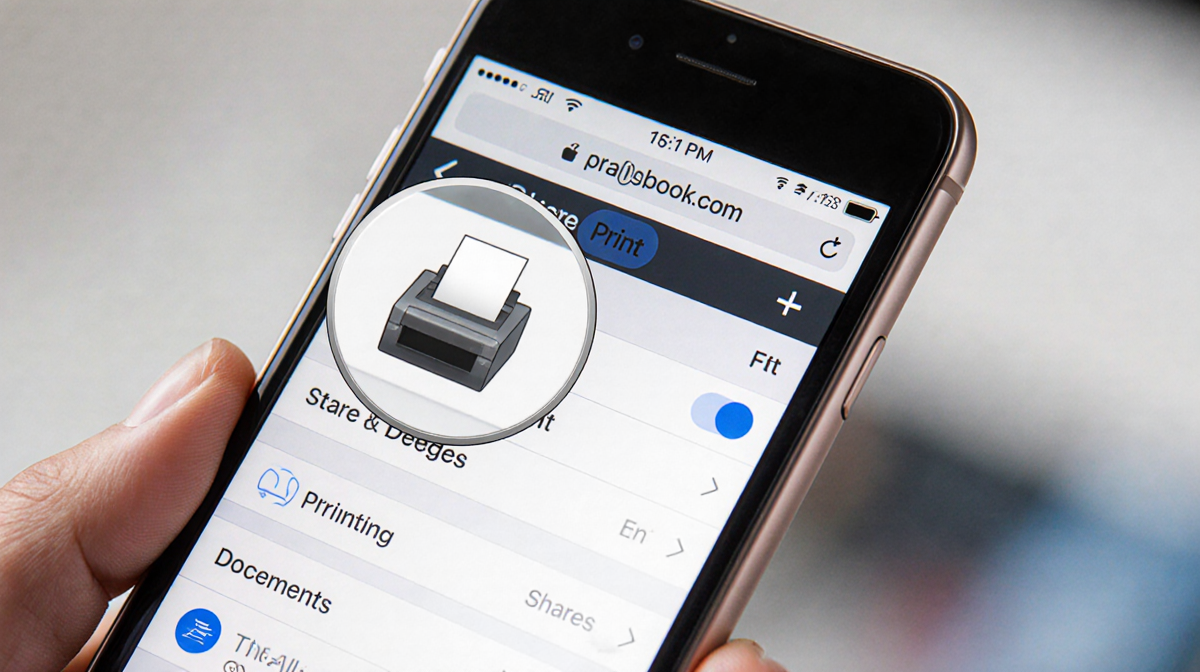
Once the Share menu appears, scroll down until you see the Print option. Tapping Print opens the Printer Options menu where you can:
- Select an AirPrint-enabled printer that’s on your network.
- Adjust printer settings such as paper size or number of copies.
- Hit the printer icon in the top-right corner to start printing.
If you’re using an older printer that doesn’t support AirPrint, you’ll need an iOS app from the printer’s manufacturer. The app usually adds a Print button in the Share menu or offers a separate printing interface.
Printing from the Files App
Printing documents stored locally or in iCloud Drive follows a similar path. Open the PDF or document in the Files app, tap the Share icon, then select Print from the menu. From there, the Printer Options screen behaves exactly like the one you see in Safari or Chrome.
This consistency across apps means you can print almost any document without having to learn a new process for each app.
Printing from Email
Email clients have slightly different layouts for the Print option.
- Apple Mail – Open the email, tap the Reply button (curved arrow), scroll to the bottom of the preview, and tap Print.
- Gmail on iOS – Open the email, tap the three-dot icon in the upper-right corner, then choose Print all.
After selecting Print, an AirPrint-enabled printer should appear. If it doesn’t, launch the manufacturer’s iOS app to establish a connection.
Saving a Web Page or Email as a PDF
Sometimes you want to keep a digital copy instead of printing. On the Printer Options screen, tap the Share icon next to the printer icon and choose Save to Files. The PDF will be stored in your chosen location, ready to be opened later.
Retrieving the PDF is simple: open the Files app and locate the file. From there, you can share, email, or print it at any time.
Using Manufacturer Apps for Non-AirPrint Printers
If your printer lacks AirPrint, many manufacturers provide iOS apps that add printing support. Common examples include HP and Canon. The general workflow is:
- Install the manufacturer’s app from the App Store.
- Open the document or web page you wish to print.
- Tap the Share icon, then select Print within the app’s interface.
- Choose the printer and adjust settings as needed.
Each app may have unique steps, so it’s best to follow the on-screen instructions provided by the manufacturer.
Key Takeaways
- Printing from an iPhone is quick and works with any AirPrint-compatible printer.
- The Share menu is the central hub for printing in Safari, Chrome, Files, Mail, and Gmail.
- Non-AirPrint printers can still be used via manufacturer iOS apps.
- You can save any web page or email as a PDF for later use.
By following these straightforward steps, you can handle most printing needs directly from your iPhone, eliminating the need for a computer in everyday scenarios.