At a Glance
- Use built-in timers to cap time on individual apps.
- Schedule downtime to keep the phone off during set periods.
- Set a bedtime mode on Android to ease nightly screen use.
- Why it matters: Reducing screen time can ease eye strain, neck pain and help you stay present.
From checking email while you wait for coffee in the morning to chatting with friends during the day, most of us spend a large portion of the day staring at a screen. The constant flow of notifications, social media posts and emails can lead to physical discomfort and mental fatigue. To help users disconnect, both Apple and Google have added new digital wellness settings in iOS 26 and Android 16. These tools let you set app timers, schedule downtime, and create bedtime routines.
How to Set App Timers on iPhone, iPad and Mac
Apple’s app timers let you allocate a specific amount of time to each app. When the time is up, the app stops and a prompt appears asking you to exit.
- Open Settings and tap Screen Time.
- Select App Limits.
- Tap Add Limit.
- Choose the apps or categories you want to limit.
- Tap Next.
- Set the desired time for each app.
- Optionally, tap Customize Days to vary limits on different days.
- Tap Add.
When you’re nearing the limit, Apple sends a notification when you have 5 minutes left. After the limit, the app displays a screen that prompts you to tap OK to exit. If you’re in the middle of something urgent, you can tap Ignore Limit.
When the daily limit is reached, the app icon becomes grayed out and shows an empty timer next to it. Screenshots by Ethan R. Coleman/News Of Los Angeles illustrate the warning screen and the home-screen view.
Scheduling Downtime on Apple Devices
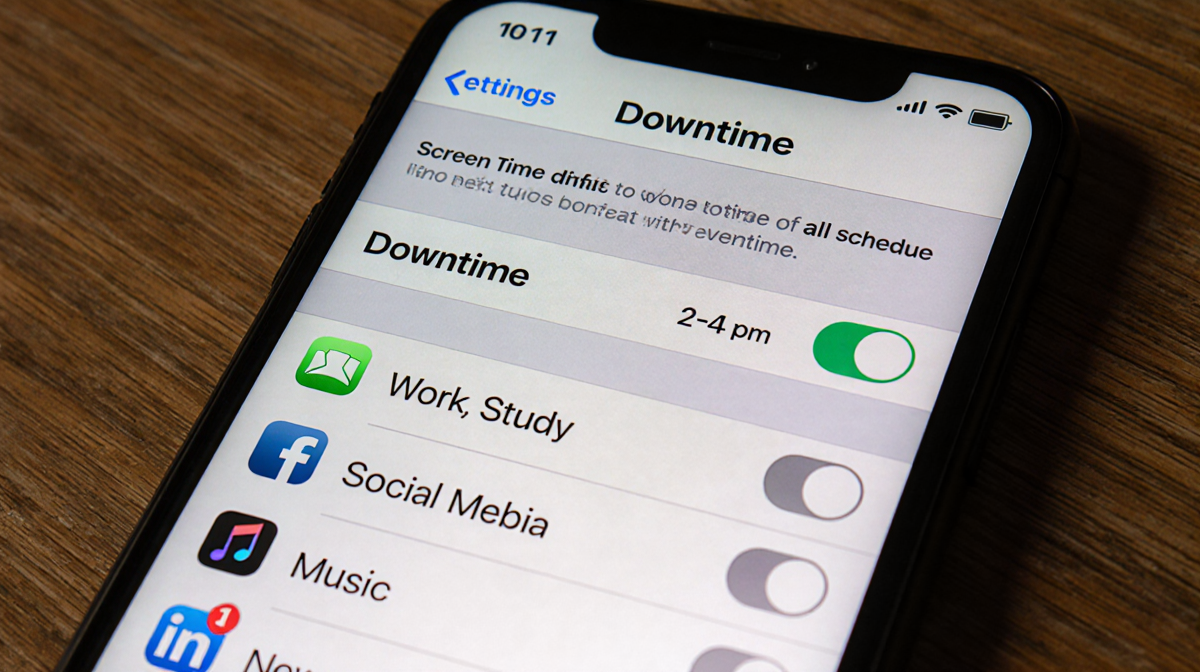
Downtime is a way to block access to all apps except those you choose to allow. It’s useful for ensuring you stay away from your phone during work or study periods.
- Go to Settings → Screen Time.
- Tap Downtime.
- Toggle the switch to On.
- Tap Scheduled.
- Set the start and end times for downtime.
- Choose which apps you want to keep available during downtime.
When the scheduled period begins, a notification appears, reminding you that downtime has started. The app timers reset each day at midnight.
Setting App Timers on Android Phones and Computers
Android’s Digital Well-being interface offers a similar experience to iOS. You can set a daily limit for each app.
- Open Settings and tap Digital wellbeing and parental controls.
- Tap the Screen time graph.
- Find the app you want to limit.
- Tap the hourglass icon next to it.
- Set the time limit.
- Tap OK.
Android app timers also reset at midnight. Screenshots by Moe Long/News Of Los Angeles show the app limit screen.
Bedtime Mode on Android
Bedtime mode reduces blue light and limits notifications during a set period. It’s a good complement to app timers.
- In Settings, tap Digital wellbeing and parental controls.
- Tap Bedtime mode.
- Tap Bedtime routine.
- Choose a custom schedule or select Turn on while charging.
- Set the desired time frame.
When bedtime mode activates, the screen dims, and notifications are silenced unless you allow them.
Tips for Using Digital Wellness Features
- Combine timers with downtime: Use app timers to limit usage during work hours and schedule downtime for evenings.
- Review your limits: If you find you’re consistently hitting the limit, consider adjusting the time or adding more apps.
- Set reminders: Turn on notifications for app limits to stay aware of your usage.
- Use bedtime mode consistently: A nightly routine can help you wind down and improve sleep quality.
Why Digital Wellness Matters
Modern devices are designed to capture attention. The constant barrage of notifications can erode focus and lead to physical strain. By setting clear boundaries, users can reclaim time for other activities and reduce eye strain, neck pain, and mental fatigue. Digital wellness settings empower users to take control of their screen habits without needing third-party apps.
Additional Resources
For more information on digital well-being, you can consult the official Apple and Google support pages. The article also references an expert’s reasons for a social media detox and a selection of apps that help manage screen time.
—
*Note: The screenshots included in the original article were credited to Ethan R. Coleman/News Of Los Angeles and Moe Long/News Of Los Angeles.
—
Key Takeaways
- iOS 26 and Android 16 offer built-in tools to limit app usage.
- App timers and downtime help enforce daily boundaries.
- Bedtime mode on Android reduces blue light and notifications.
- Consistent use of these features can improve physical comfort and mental focus.