At a Glance
- Windows 11 is the default OS for PCs, but many users face battery life and usability problems.
- Uninstalling built-in apps like Copilot and OneDrive can reduce clutter and improve performance.
- Tweaking Start menu, taskbar, Edge feed, and notifications helps create a smoother experience.
- Why it matters: A cleaner, faster Windows 11 setup keeps your workflow efficient and your data secure.
Windows 11 has become the standard operating system for PCs, replacing Windows 10, which Microsoft discontinued support for in late 2023. Users still receive free security updates for Windows 10 until October 2026, but many are eager to upgrade. The transition, however, can bring headaches such as shorter battery life and other glitches. The following guide shows how to eliminate common problems and streamline the new OS.
Uninstall Windows Copilot
Microsoft is pushing its AI assistant, Copilot, into Word, Excel, Notepad, Edge, and more. While some users enjoy the feature, others find the extra AI functions intrusive. To remove Copilot, search for it in the Start menu or the bottom search bar. When it appears, right-click the app and choose Uninstall.
Get Rid of OneDrive
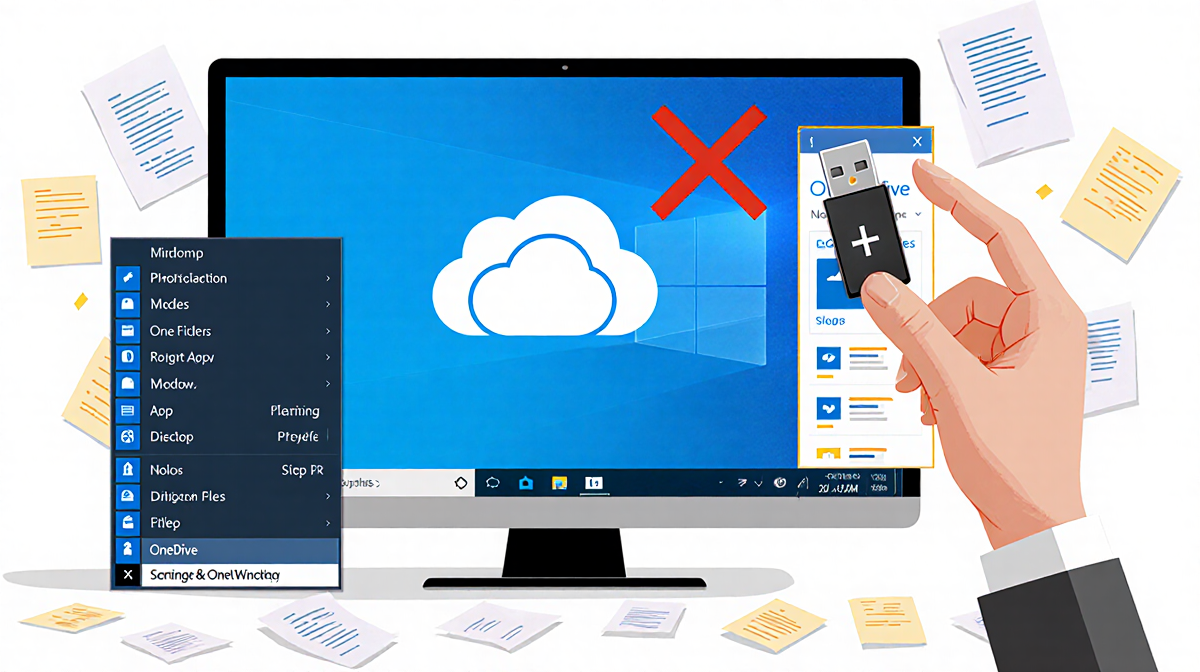
OneDrive is Microsoft’s cloud storage service that syncs files, photos, and apps across devices. Users have reported syncing glitches, data loss, and concerns about data access. Before uninstalling, back up all important documents, photos, and videos. Then, search for OneDrive in the Start menu, right-click the app, and select Uninstall.
Turn Off Recommendations
The Start menu often suggests apps, shortcuts, tips, and new items. To stop these recommendations, go to Settings > Personalization > Start and toggle off Show recommendations for tips, shortcuts, new apps, and more.
Reconfigure Your Start Menu
If the preloaded Start menu feels cluttered, you can customize it. Open the Start menu, right-click any pinned app, and choose Unpin from Start. To keep desired apps, open the Start menu, click All apps, find the app you want to pin, right-click it, and select Pin to Start.
Clean Up Your Taskbar
The taskbar should hold only the apps you use most. To modify it, open the Start menu, click All apps, right-click an app, select More, then Pin to taskbar. Remove unwanted apps by right-clicking them on the taskbar and choosing Unpin.
Turn Off Edge Feed and Widgets
Edge’s new tab page displays a feed of news headlines and sponsored ads, influenced by your browsing habits and Microsoft’s AI. To disable it, open a new tab, click the plus icon at the top, then click the gear icon in the top-right corner. Toggle Show widgets and Show feed to Off. The next time you open Edge, only a natural-world image will appear.
Limit or Eliminate Notifications
If you’re overwhelmed by notifications from websites or apps, customize your settings. Search for Notifications in the bottom search bar. In the Notifications menu, toggle off unwanted apps or websites individually. You can also turn off notifications entirely.
Disable Startup Apps
Windows starts certain apps automatically when you log in. While some, like Defender, are essential, others such as Teams or OneDrive may be unnecessary. Open Task Manager from the Start menu, click Startup apps, and review each app’s impact. Disable those you don’t need to improve startup speed.
Key Takeaways
- Uninstall Copilot and OneDrive if you don’t use them.
- Turn off Start menu recommendations and Edge feed to reduce clutter.
- Pin only the apps you use most to the Start menu and taskbar.
- Customize notifications to avoid distractions.
- Disable unnecessary startup apps for faster boot times.
By following these steps, you’ll create a cleaner, more efficient Windows 11 environment that matches your personal workflow and keeps your data secure.